
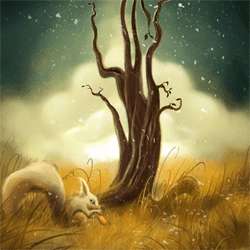
Learn how to create this fantastic drawing by Hatice Bayramoglu. You will learn the process she uses to create drawings in Photoshop.
Preview of Final Results
![final-results[3]](https://cdn.photoshoptutorials.ws/images/stories/f05ef7888ab8_14BD5/finalresults3.png?strip=all&webp=82&avif=82&w=1920 "final-results[3]")
Paint a Surreal Scene Photoshop Tutorial
Step 1 – Sketch the tree
I have a lot of sketches. Here, I decided to use the tree that was a part of an older sketch. You may sketch a tree of your own and scan it into the computer or use the sketch below.
![fantastic_tree_01[4]](https://cdn.photoshoptutorials.ws/images/stories/f05ef7888ab8_14BD5/fantastic_tree_014.jpg?strip=all&webp=82&avif=82&w=1920 "fantastic_tree_01[4]")
Step 2 – Create a new image
Create a new image (Ctrl+N or File > New) with the settings shown below.
- Width: 640px
- Height: 948px
- Resolution: 72
![fantastic_tree_02[4]](https://cdn.photoshoptutorials.ws/images/stories/f05ef7888ab8_14BD5/fantastic_tree_024.jpg?strip=all&webp=82&avif=82&w=1920 "fantastic_tree_02[4]")
Step 3 – Create layers
Name your sketch layer “sketch” or any other name you desire. Create another layer for the animal you wish to add to the drawing and name it “squirrel_sketch” or whichever animal you are drawing. Select the “squirrel_sketch” layer and sketch a squirrel.
![fantastic_tree_03[4]](https://cdn.photoshoptutorials.ws/images/stories/f05ef7888ab8_14BD5/fantastic_tree_034.jpg?strip=all&webp=82&avif=82&w=1920 "fantastic_tree_03[4]")
Step 4 – Choose a colour palette
For this painting, I chose an earthy palette. You may load these colours into the Swatches palette in Photoshop or choose your own colours.
![fantastic_tree_color[4]](https://cdn.photoshoptutorials.ws/images/stories/f05ef7888ab8_14BD5/fantastic_tree_color4.jpg?strip=all&webp=82&avif=82&w=1920 "fantastic_tree_color[4]")
Step 5 – Choose a brush
Select the Brush Tool and then right click on the canvas.
![fantastic_tree_brush_001[4]](https://cdn.photoshoptutorials.ws/images/stories/f05ef7888ab8_14BD5/fantastic_tree_brush_0014.jpg?strip=all&webp=82&avif=82&w=1920 "fantastic_tree_brush_001[4]")
When the Brush Setting window appears, set your brush to the settings below.
- Master Diameter: 19px
- Hardness: 100%
![fantastic_tree_brush_002[4]](https://cdn.photoshoptutorials.ws/images/stories/f05ef7888ab8_14BD5/fantastic_tree_brush_0024.jpg?strip=all&webp=82&avif=82&w=1920 "fantastic_tree_brush_002[4]")
Now add more settings by opening the Brush Presets (F5 or Window > Brushes)
![fantastic_tree_brush_003[4]](https://cdn.photoshoptutorials.ws/images/stories/f05ef7888ab8_14BD5/fantastic_tree_brush_0034.jpg?strip=all&webp=82&avif=82&w=1920 "fantastic_tree_brush_003[4]")
This will open a new window with extra options on the left.
![fantastic_tree_brush_004[4]](https://cdn.photoshoptutorials.ws/images/stories/f05ef7888ab8_14BD5/fantastic_tree_brush_0044.jpg?strip=all&webp=82&avif=82&w=1920 "fantastic_tree_brush_004[4]")
From the left panel, check “Other Dynamics”
![fantastic_tree_brush_005[4]](https://cdn.photoshoptutorials.ws/images/stories/f05ef7888ab8_14BD5/fantastic_tree_brush_0054.jpg?strip=all&webp=82&avif=82&w=1920 "fantastic_tree_brush_005[4]")
Make sure both controls are set to “Pen Pressure.”
![fantastic_tree_brush_006[4]](https://cdn.photoshoptutorials.ws/images/stories/f05ef7888ab8_14BD5/fantastic_tree_brush_0064.jpg?strip=all&webp=82&avif=82&w=1920 "fantastic_tree_brush_006[4]")
Set Opacity Jitter to 6% and Flow Jitter to 5%.
![fantastic_tree_brush_007[4]](https://cdn.photoshoptutorials.ws/images/stories/f05ef7888ab8_14BD5/fantastic_tree_brush_0074.jpg?strip=all&webp=82&avif=82&w=1920 "fantastic_tree_brush_007[4]")
Test your brush to see how well you can control it.
![fantastic_tree_brush_008[4]](https://cdn.photoshoptutorials.ws/images/stories/f05ef7888ab8_14BD5/fantastic_tree_brush_0084.jpg?strip=all&webp=82&avif=82&w=1920 "fantastic_tree_brush_008[4]")
Step 6 – Filling in the background
Select the layer labelled “background.” Then select the Gradient Tool and fill the canvas as shown below.
![fantastic_tree_04[4]](https://cdn.photoshoptutorials.ws/images/stories/f05ef7888ab8_14BD5/fantastic_tree_044.jpg?strip=all&webp=82&avif=82&w=1920 "fantastic_tree_04[4]")
Step 7 – Adding the sky
Create two more layers and label it “sky_colour” and “tree_colour.” As you can see below, I’ve deleted the “squirrel_sketch” layer. I have saved the sketch into a different psd file to work with later. Now select the “tree_colour” layer and roughly paint the tree brown. Then select the “sky_colour” layer and roughly paint the sky.
![fantastic_tree_05[4]](https://cdn.photoshoptutorials.ws/images/stories/f05ef7888ab8_14BD5/fantastic_tree_054.jpg?strip=all&webp=82&avif=82&w=1920 "fantastic_tree_05[4]")
Add some more shadows to the “sky_colour” label. Create a layer labelled “sun” and paint a sun behind the tree.
![fantastic_tree_06[4]](https://cdn.photoshoptutorials.ws/images/stories/f05ef7888ab8_14BD5/fantastic_tree_064.jpg?strip=all&webp=82&avif=82&w=1920 "fantastic_tree_06[4]")
Step 8 – Change the canvas size
To add more detail to the painting, you need a bigger canvas. So change the Image Size (Image > Image Size) to the following settings.
- Width: 1500px
- Height: 2222px
- Resolution: 300
![fantastic_tree_07[4]](https://cdn.photoshoptutorials.ws/images/stories/f05ef7888ab8_14BD5/fantastic_tree_074.jpg?strip=all&webp=82&avif=82&w=1920 "fantastic_tree_07[4]")
Step 9 – Quick detailing on the tree
Set the opacity of the “sketch” layer to 42% so that it doesn’t interfere with your painting. Select the “tree_colour” layer and add some more colour to your tree.
3 responses to “How to Paint a Surreal Scene in Photoshop”
-

Hello There!
I agree with Jakub. The draw is awesome. But you dont tell anything how you do that, example the tree. The tree awesome realistic but you dont tell what brush or which technique you use for it. Anyway, i read all of it and do my first digital draw and I think it is quite good enought, so THANK YOU!! :) -
quite a poor tutorial. don’t get me wrong, your art is awesome, but you don’t explain anything. all you say is ‘set your brush to that’ and then you say “paint clouds”, “paint highlights”. no tips whatsoever how to achieve an effect similar to yours. and then your tree changes dramatically from one step to another without saying how you did that. your highlights suddenly changed to white.
in one abbreviated word – wtf…
-
MY FAVORITE STYLE I LOVED IT, I ADORE THIS COLORING STYLE BUT I THINK U USED A GLOWING EFFECT SOMEWHERE IN THE BACKGROUND AND U FORGOT TO SAY SO, U R A REAL ARTIST ,THANX ALOT :)


Leave a Reply