
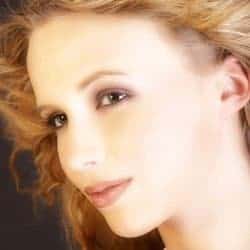
Add a strong diffusion glow effect. This Photoshop effect makes light skin glow while keeping dark areas, such as hair, dark.
Adding the Diffusion Effect
Many experienced Photoshop users may already know about this popular effect. For those who don’t know, you can apply a quick version of this effect by duplicating the layer, changing the blending mode to Screen, and applying a Gaussian Blur to the new layer. This tutorial goes further by showing you how to filter out the effect from dark areas and how to restore edge sharpness.
Step 1
Open a photo to edit.

Step 2
Duplicate the layer (Layer> Duplicate or Ctrl+J) and change the blending mode of the new layer to Screen.
Step 3
Add a layer mask to the top layer (Layer> Add Layer Mask> Reveal All).
Step 4
Make sure the layer mask is activated. The thumbnail of the layer mask in the layers window should have a white border around it. If it doesn’t, click on the thumbnail to activate the layer mask.
Step 5
With the layer mask activated, open the Apply Image tool (Image> Apply Image). The default settings should be fine. Simply click OK to continue.

Step 6
Your image should now have a similar glow effect:

Step 7
Click on the thumbnail of the top layer to deactivate the layer mask. With the top layer selected, open the Gaussian Blur filter tool (Filter> Blur> Gaussian Blur). Make sure that the preview checkbox is checked and increase the radius slider until the desired effect is achieved.

Restore Edge Sharpness
In this portion of the tutorial, you’ll learn how to restore the edge sharpness. This portion of the tutorial is optional but we recommend that you follow it on your first try so that you’ll be able to see the difference.
Step 8
We need to add another layer mask but Photoshop will only allow one raster layer mask per layer. To get around this, we’ll simply group the layer (Layer> Group Layers or Ctrl+G) and add a layer mask (Layer> Add Layer Mask> Reveal All) to the new group created.

Step 9
Click on the thumbnail of the new layer mask. With the layer mask selected, use the Apply Image tool to apply the entire image to the layer mask. The default settings should be fine.
3 responses to “Diffusion”
-

Thank u so much
-
Good but it’s overly strong and fake. It would look better if you had it at 30-50% opacity.
-
woow thank you so much great tutorial and easy steps. Can i add your this tutorial to my blog


Leave a Reply