
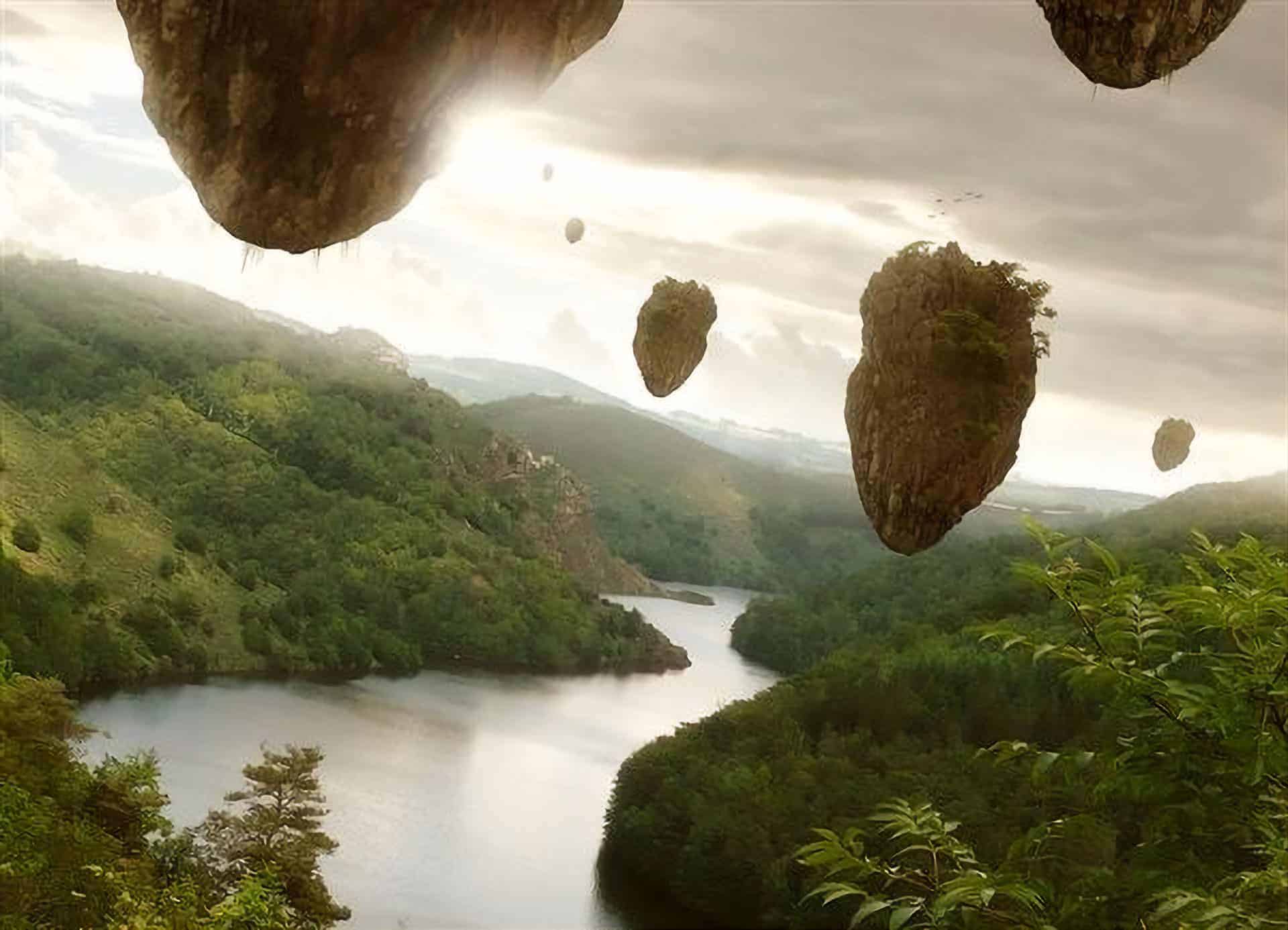
In this photo manipulation tutorial, you will learn how to create a realistic composition of a sunset in a world with floating islands! We will cover professional-level Photoshop tricks such as adding accurate shadows and highlights, various blending techniques such as giving the image a soft focus effect and altering luminosity and shadows of the scene, adding haziness, and much more!
Preview of Final Results

Tutorial Resources
- River Stock 3 by cat-in-the-stock (Royalty Free License)
- James Bond Island 1.2 by meihua-stock (Royalty Free License)
- Field of dreams by cubstock (Royalty Free License)
Rons Winter Collection (Royalty Free License)(Alternative)- Bird Brushes by lpdragonfly (Creative Commons)
Floating Island Scene Photoshop Tutorial
- Program: Adobe Photoshop CS2
- Difficulty: Medium
- Estimated Completion Time: 1 to 1.5 hours
Step 1 – Create a new file
Create a new file The image that we would be creating may be used as a high-resolution desktop wallpaper thus the following settings to begin with:
- Width: 1800px
- Height: 1500px
- Resolution: 300 dpi
- Color Mode: RGB Color; 8bit
- Background Contents: Transparent

Step 2 – Create the scenery
To begin, let’s open “River Stock 3”. Use your Move tool (V) and drag it to our canvas, with the image in place, activate your Transform tool by pressing Ctrl/Cmd + T and rotate the image.

The sky of our present image doesn’t look that good, so we have to change it. Open “Field of dreams”, then select its sky using the Marquee tool (M) and drag the selected region to our canvas using the Move Tool (V). Once it is on our canvas, transform the image by pressing Ctrl/Cmd + T. Flip the image horizontally once the transform menu pops up and rotate that selected sky.

We would need to erase the unwanted parts of our sky to bring out the mountains. Activate the Eraser tool (E) and use the following option values:
- Brush size: 300px
- Hardness: 0%
- Opacity: 100%
- Flow: 100%
Note: The brush hardness can be activated by pressing the drop-down menu on the Brush size tab.

Now that you have your Eraser tool ready, we can now erase parts of the sky that covers our mountains.

We will be increasing the hazy effect on the mountains. Create a new layer (Ctrl/Cmd + Shift + N) then name that layer “hazy”, you may rename it by double clicking on the word “layer” and typing a new name for it. Activate your Brush tool (B) and enter these values:
- Brush size: 175px
- Hardness: 0%
- Opacity: 15%
- Flow: 100%
Use the Brush Tool on the region indicated by the image below.

We would need to darken a small part of the sky to make the sky look a bit more dramatic. Create a new layer and name it “Darken” then activate your brush tool and use the same Brush values above.

Step 3 – Add the floating islands
In this step, we will be adding the floating islands. Open “James Bond island 1.2” and drag it to our canvas. We would need to resize this image due to its size. Activate your Transform tool (Ctrl/Cmd + T) to resize and to rotate the image.
4 responses to “Create a Floating Island Scene Similar to James Cameron’s Avatar”
-

Great idea!
-
I couldn’t get the bird brushes to download, but I found the artist’s DeviantArt page and some brushes that are similar.
https://www.deviantart.com/ivadesign/art/bird-brushes-116619710
Thank you for the cool tut!-
There’s a bug on the QBrushes website. You have to click on the download link several times in order for the download button to work.
The link was changed to yours since it is more direct and works correctly. Thank you Su!
-
-
half of files doesn’t work


Leave a Reply