

Step 16
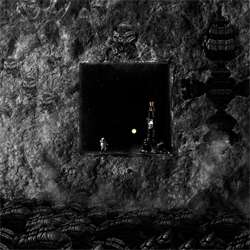
Set your foreground color to black then use the Brush tool with a soft round brush to paint some shadows to the right of the cosmonaught (because the light source is on the left). Set the Shadow layer to Multiply then lower the opacity as needed.

Step 17
Open the file “Ship” – it’s an image of a satellite but we can use it to make a nice space exploration ship. We don’t have to worry so much about the scientific aspect of it for these types of photo manipulation.
Create a selection of the ship then paste it into the document. Use the Free Transform tool (Ctrl/Cmd+T or Edit > Free Transform) to resize and position the ship like shown in the image below.

Step 18
Create a new layer then use the Brush tool to paint some shadows using a soft-edge brush (remember that the light comes from the left). Painting shadow is not an exact science thing but rather an instinctual thing – think where your light source it and how strong your shadow should be.

Step 19
After inserting the objects into our scene, we should make it look like it belongs there. How can we do that? Well, when I first started photo manipulations, I searched for exact recipes and solutions to this problem. There were only very specific solutions because each image is different. If you want to be good at photo manipulations and learn how to composite a scene with different images, you should be able to tackle problems like these. Let me share some tips with you:
- Match the contrast – If the scene is high contrast, then increase the objects contrast. If it is dull, decrease the objects contrast.
- Know where your light source is and treat the object accordingly. Use the Curves adjustment layers with layer masks so that you can selectively paint where you want the adjustments to appear. Don’t change the colors yet; change only the luminosity. It’s usually good practice to separate the luminosity of an object from its color and adapt your workflow to this practice.
- Change the colors of your object to match the colors of the scene. This is rather an instinctual process but if you want to be picky and precise, you can use some techniques (ex. measuring the objects and scenes light or dark point and taking further action with that knowledge in mind) – but they won’t always yield the best results. After enough practice, you will be able to feel if the colors are right or not.
- Decrease or increase saturation to add some final touches.
You can see how after all the adjustments, the objects blend well with its surroundings. I will not go into detail for every adjustments I did because it’s hard to explain every brush stroke I made in the layer masks. However, you can take a look at my adjustments in the PSD and try to replicate them yourself without copying every move I make. It’s good practice to not copy every workflow you see in tutorials – youll learn more if you take bits and pieces of it to create your own workflow.
After inserting an object from a different picture into our scene we should make it look like it belongs there. How could we do that? Well, when I first started photo manipulation I searched for exact recipes and solutions to this problem. I only found specific recipes and solutions because each image is different. If you want to be good at photo manipulation and compositing a scene with different objects than you should be able to tackle this problem well. Let me share you some tips from my experience:
3 responses to “Create a Sci-Fi Space Cave Scene in Photoshop”
-

None of these image links actually work now, unfortunately
-
Impressive Work…Love it.thanks for sharing!
-
Actually it is best tutorial.It is very helpful and important.Well explained, great article and really all is awesome !!


Leave a Reply