

Step 8
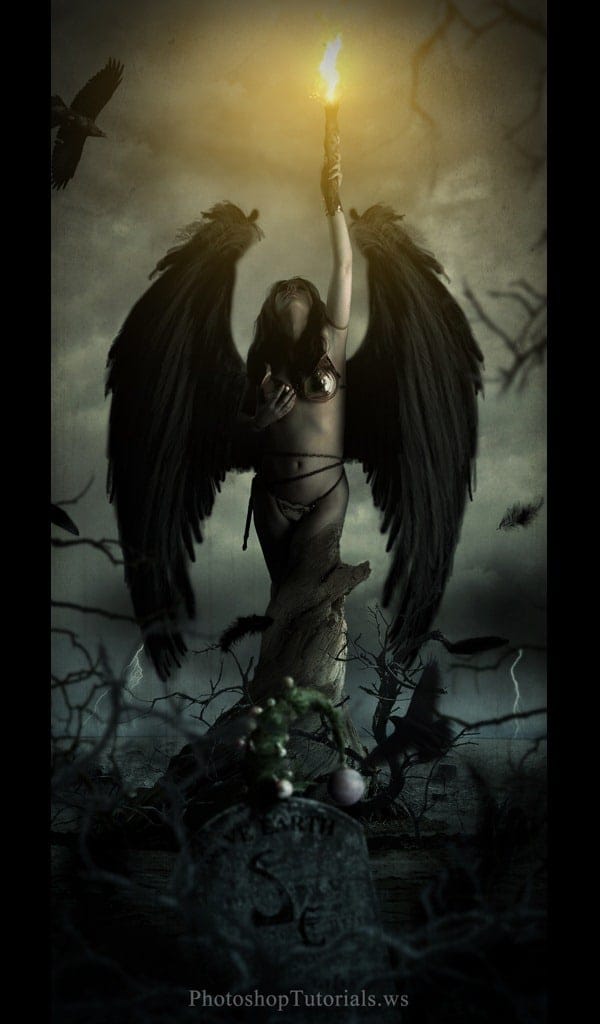
Fantasy scenes are never without a mystical object in the hands of the main character, hence in this step we are going to create a uniquely looking fire torch in the left hand of the women.
1) Erase the small knife that the woman is originally holding using the Eraser Tool (E).

2) Now import the image of the Gnarled Log onto the working canvas and place it in the position as shown.

3) Now erase the portion of the log to make the fingers visible, which makes the log look like it is held in the hands of the women.

4) With the log layer selected go to Image>Adjustments>Exposure and set the Exposure to -0.19 and Gamma Correction to 0.49.

Step 9
Import the image of the BackGround on to the working canvas and place it as shown.

Step 10
In any photo-manipulation or matte painting works lighting plays an important role in making the scene look more convincing in all natural aspects. Hence in this scene we assume that the light source is on the right side of the scene.
-Using the Soft Round Brush (B) paint the dark shadow on the left side of the women and the bark as shown.

Step 11
As we said in the intro that the nature is holding it’s last light of hope from dying, we need to add few dead branches in the scene to create the dry feel in the scene. In this step we are going to cut the dead tree from its image and place it in our scene.
1) Import the image of the Dead Tree 1 and select the Blue Channel from the ‘Channels’ pallet. The go to Image>Calculations and select the Blue channel from the channel drop down list.Â

2) Now by using the Levels make the image into a complete silhouette.

3) Select the main image and go to Select>Load Selection and select the Alpha 1 from the Channel Drop down list and press OK to select the mask around the dead tree.

4) Now separate the selection into a new layer.

5) Now import the dead tree branches on to the working canvas and place them near the base of the bark as shown.

Step 12
In this step we are going to add wings to the woman.
1) Import the image of the Wings into the scene and place them on the back of the woman as shown.
11 responses to “Create a Photo Manipulation of an Angel Holding a Torch”
-

These look fantastic! Thanks for bringing them together – what a great collection
-
Nice tutorial, but the writer doesn’t seem to know the difference between the singular “woman” and the plural “women.” VERY annoying.
-
couldnt download the wings any other place i can go 2 get them
-
nice tutorial
-
Merci beaucoup. J’ai utilisé d’autres ailes, je n’avais pas vu le lien rajouté. Ma réalisation: http://www.chez-mireilled.com/article-montage-ange-surrealiste-avec-photoshop-109574026.html
-
best I could find.
-
i found a wing by searching thru deviart site … the link was gone even checked he profile for one … but i got it :) not as perfect as hers but cool
-
I too am unable to find “wings.”
-
Thank You
-
The link “wings” doesn’t work. Page doesn’t exist anymore is the message you get.
-
me 2 i went to her page and trying to get it the wings
-


Leave a Reply