
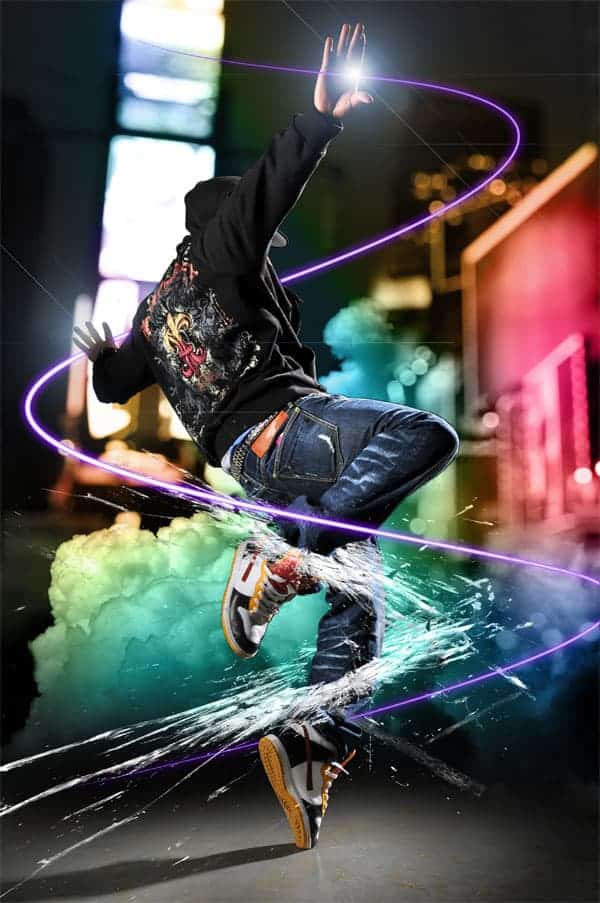
In this detailed and lengthy Photoshop tutorial, you will learn how to combine photos and add special effects to turn a normal photograph into a stunning artwork. You will also learn several tricks to reduce your Photoshop document file size and number of layers and layer styles.
Preview of Final Results

Stock Photos
Here are the stock photos used for this website. You can purchase the images through Dreamstime by clicking on the image below. We used the highest resolution (unscaled) images available to write this tutorial. If you would like to follow this tutorial using the same settings we used, download the highest resolution (unscaled) images available.


Step 1 – Open the image of the dancer
Load the image of the dancer into Photoshop.

Step 2 – Place the image of the clouds
Choose File > Place, browse for the image of the clouds, then click OK. The image of the clouds will appear in your document window with the transform tool activated. Resize and position the clouds where you like it to appear then press enter on your keyboard to apply the changes. The reason why we use the place command rather than other methods is because the place command will place the image as a smart object (if you are using Photoshop CS2 or newer) to help keep the file size small if you save the document without the maximize compatibility option.

Step 3 – Blend the clouds
Now we’ll make the sky transparent so that only the clouds are visible. Instead of using a mask, we’ll use the blending options. This will help keep the file size small and reduce the number of layers in your document. Right click on the layer of the clouds then choose Blending Options.

In the blending options, move the black input slider towards the right until the sky disappears.

Hold the alt key on your keyboard and drag the black input slider all the way towards the right. The hard edges of the clouds should disappear and the clouds should have some transparency. Don’t click OK yet.

In the same layer style window, click on the Color Overlay option. Choose white as the color then set the blend mode to color. This is a simple non-destructive trick to desaturate a layer using layer styles. Click OK to apply the changes.
21 responses to “Dazzling Dance Photo Manipulation”
-

Thanks alot.
-
Thankz for the sharing ….that’s great ..anyway does it have a video?
-
Yes it does. You can find the Photoshop tutorial here: https://www.youtube.com/watch?v=6wHajsp12_U
-
-
I am having trouble in the step7. I am following your instructions but my photo remains back of the cloud.
Please help me as soon as possible.
Thank you for such nice share. -
cool piece
-
My Stoke Path Is Not Enabled.Why?
-
nice
-
Excellent tutorial. I love your imagination and creativity. The use of the Gun Shot was an outstanding touch!!
-
thank u……..
-
Job well done! Thanks for being willing to post this.
-
Phaaaaaaaaaaaa…………. nice
-
wonder full
-
I love your work! thanksalot! we want more
-
Thanks a lot for the tutorial
-
quisiera que mi hicieras el favor de darme un link para descargar ese programa….
-
This is incredible! Thanks a lot for the tutorial
-
Send Me the glass Picture If you see my comment…….ALso Thanks
-
a bit hard to follow but great help besides im still a no0b at this stuff
-
This is a wonderful tutorial i came to know through my client. thanks for posting this
-
Thank you very much . :)
This is awesome . -
it’s a really great image i love it n the tutorial is even better, thx alot i really needed to know how to work something like this, keep it up


Leave a Reply