
![image019[6]](https://cdn.photoshoptutorials.ws/images/stories/68c3a34a5b97_E909/image0196.jpg?strip=all&webp=82&avif=82&w=1920 "image019[6]")
Step 6
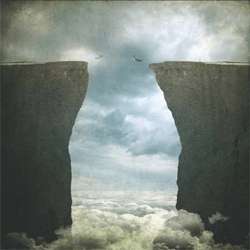
Activate the Move tool (V) and drag the duplicated layer to the other side of the canvas. Move and position it as shown on the image below:
![image020[6]](https://cdn.photoshoptutorials.ws/images/stories/68c3a34a5b97_E909/image0206.jpg?strip=all&webp=82&avif=82&w=1920 "image020[6]")
Step 7
Next, activate the Polygonal Lasso Tool (L) and use this tool to change the shape of the left hill. To do that, follow the instructions shown below:
![image021[6]](https://cdn.photoshoptutorials.ws/images/stories/68c3a34a5b97_E909/image0216.jpg?strip=all&webp=82&avif=82&w=1920 "image021[6]")
The result of that should be similar to this:
![image022[6]](https://cdn.photoshoptutorials.ws/images/stories/68c3a34a5b97_E909/image0226.jpg?strip=all&webp=82&avif=82&w=1920 "image022[6]")
Step 8
Now, we will be changing the pattern of the left hill so it wouldn’t be identical to the right hill. To start, activate the Clone Stamp tool (S) and once activated, input the following:
![image023[6]](https://cdn.photoshoptutorials.ws/images/stories/68c3a34a5b97_E909/image0236.jpg?strip=all&webp=82&avif=82&w=1920 "image023[6]")
- Brush size: 300px
- Opacity: 100%
- Flow: 100%
Now, let’s start cloning!
![image024[6]](https://cdn.photoshoptutorials.ws/images/stories/68c3a34a5b97_E909/image0246.jpg?strip=all&webp=82&avif=82&w=1920 "image024[6]")
The result should be similar to the following:
![image025[6]](https://cdn.photoshoptutorials.ws/images/stories/68c3a34a5b97_E909/image0256.jpg?strip=all&webp=82&avif=82&w=1920 "image025[6]")
Step 9
Now, we will be darkening the hills since the light will be coming from its back. To start, create a new layer (Ctrl/Cmd + Shift + N) and then on the name box, input “Darken Right”. Next, right click on this newly created layer but make sure to put this layer above the “Right Hill” layer and then click on Create Clipping Mask from the contextual menu. See image below:
![image026[6]](https://cdn.photoshoptutorials.ws/images/stories/68c3a34a5b97_E909/image0266.jpg?strip=all&webp=82&avif=82&w=1920 "image026[6]")
Step 10
Next, activate the Brush tool (B) but before we start, make sure that the active Brushes are the default brushes. The default Photoshop brushes are shown on the image below, if that’s not what you see, then follow the instructions below:
![image027[6]](https://cdn.photoshoptutorials.ws/images/stories/68c3a34a5b97_E909/image0276.jpg?strip=all&webp=82&avif=82&w=1920 "image027[6]")
Right click the canvas while a layer is selected and while the Brush tool (B) is activated and then click on the button highlighted below:
![image028[12]](https://cdn.photoshoptutorials.ws/images/stories/68c3a34a5b97_E909/image02812.jpg?strip=all&webp=82&avif=82&w=1920 "image028[12]")
Then click on “Reset Brushes” from the contextual menu.
![image029[9]](https://cdn.photoshoptutorials.ws/images/stories/68c3a34a5b97_E909/image0299.jpg?strip=all&webp=82&avif=82&w=1920 "image029[9]")
Now, that that is done input the following settings for our Brush tool (B):
- Brush size: 900px
- Hardness: 0%
- Opacity: 15%
- Flow: 100%
- #: 000000
![image030[6]](https://cdn.photoshoptutorials.ws/images/stories/68c3a34a5b97_E909/image0306.jpg?strip=all&webp=82&avif=82&w=1920 "image030[6]")
#: 000000 – This refers to the Brush’s color. To change that, simply follow the instructions below:
![image031[6]](https://cdn.photoshoptutorials.ws/images/stories/68c3a34a5b97_E909/image0316.jpg?strip=all&webp=82&avif=82&w=1920 "image031[6]")
When the Color Picker box opens, input the following on the # space:
![image032[6]](https://cdn.photoshoptutorials.ws/images/stories/68c3a34a5b97_E909/image0326.jpg?strip=all&webp=82&avif=82&w=1920 "image032[6]")
Step 11
Now, that all is set, we can now paint:
![image033[6]](https://cdn.photoshoptutorials.ws/images/stories/68c3a34a5b97_E909/image0336.jpg?strip=all&webp=82&avif=82&w=1920 "image033[6]")
The result of that should be similar to this:
![image034[6]](https://cdn.photoshoptutorials.ws/images/stories/68c3a34a5b97_E909/image0346.jpg?strip=all&webp=82&avif=82&w=1920 "image034[6]")
Step 12
Next, create a new layer above the left hill and then name this layer – “Darken Left”.
Right click on the newly created layer again and then click on “Create Clipping Mask”.
Activate the Brush tool (B) and then input the following:
- Brush size: 900px
- Hardness: 0%
- Opacity: 15%
- Flow: 100%
- #: 000000
Now, let’s paint:
![image035[6]](https://cdn.photoshoptutorials.ws/images/stories/68c3a34a5b97_E909/image0356.jpg?strip=all&webp=82&avif=82&w=1920 "image035[6]")
The result:
![image036[6]](https://cdn.photoshoptutorials.ws/images/stories/68c3a34a5b97_E909/image0366.jpg?strip=all&webp=82&avif=82&w=1920 "image036[6]")
Step 13 – Create the Clouds
Now, we will be adding clouds at the bottom of the hills to give the illusion that this is a very high place. To start, create a new layer (Ctrl/Cmd + Shift + N) and name it “Clouds 1”.
6 responses to “How to Create a Conceptual Image of a Couple Jumping from High Cliffs in Photoshop”
-

Good tutorial! Thank you!
-
Thanks a lot! Your tutorial is very useful and so precise, unlike many others. Very good guidance.
-
Too much ‘grunge’ for my liking but , nice idea and thanx anyway.
-
After completing one of your tutorials, i am reminded of the quotation below.
There are some days when I think I’m going to die from an overdose of satisfaction.
Salvador Dali -
Awesome tutorial, Thanks heaps! Keep it up :)
-
a very good tutorial i learnt a lot thank-you


Leave a Reply