
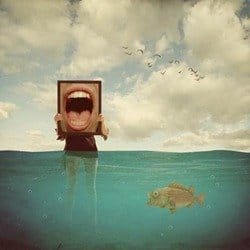
- Brush size: 150px
- Hardness: 0%
- Mode: Normal
- Strength: 100%


The result:

Now, let’s change the water’s color. To do that, click on its layer and go to Image > Adjustments > Color Balance. Once open, use the following settings:
- Color Levels: -20, 0, +35
- Tone Balance: Midtones
- Preserve Luminosity: Checked

The resulting color should be similar to the following:

Again, let’s adjust its color, this time we will be dealing with the tones of the water’s shadows. Start by clicking on the layer again and go to Image > Adjustments > Color Balance. Once open, use the following settings:
- Color Levels: -45, +25, +18
- Tone Balance: Shadows
- Preserve Luminosity: Checked

The result:

Step 3: Create the Sky
Now, it’s time we added the sky. Open Sunny Field by frozenstocks and once open, activate the Rectangular Marquee Tool (M).

To use this tool and select the sky, simply point and drag the mouse from one point to another. Now create a selection area over the sky on the “Sunny field” image. See image below:

Once you’ve created the selection tool, activate your Move tool (V) and drag the sky below the “water” layer. Now, after moving the sky, rename it to “sky”. Next, activate the Transform tool (Ctrl/Cmd + T) and resize it as shown below:


Next, let’s adjust the Brightness and Contrast of the sky. First, make sure that the “sky” layer is selected and then go to Image > Adjustments > Brightness/Contrast and then input the following once it opens:
- Brightness: 15
- Contrast: 0
The result should be similar to this:

STEP 4: Create the Horizon
Now that the sky and sea are in place, let’s now add the elements of our background. First, let’s enhance the horizon. Let’s make our horizon brighter. First, create a new layer by pressing Ctrl/Cmd + Shift + N. After doing this, a box would open – input “horizon” in the name box. Put this layer above the “sky” layer and below the “water” layer. Next, activate the Brush tool (B) and once it is open, input the following settings:
- Brush size: 900px
- Hardness: 0%
- Opacity: 30%
- Flow: 100%
- #: ffffff

Note: for the Brush color, follow the instructions below:


Now, we’re all set – paint on the area shown below:

The result should be similar to this:

Step 5: Add the Bubbles
After the horizon, let’s now add the bubbles under water. To start, make sure you’ve downloaded the brushes (Bubbles by hawksmont) and placed them on the Photoshop Brushes folder (Photoshop > Presets > Brushes). To open these brushes, simply activate the Brush tool (B) and right click on the canvas. Once you’ve done that, a contextual menu would appear.
5 responses to “How to Create a Retro Surreal Photo Manipulation using Photoshop”
-

I know this tutorial is an old tutorial and that some of the stock photos are gone, but I really like the tutorials on this website by Michael Manalo. I can follow along using other stocks and the artworks are beautiful.
-
It would have been much more helpful as a beginner if I could see what the layers looked like on the right side of the screen. As it was, the lasso tool at the very beginning working with the water lost me. Please don’t assume you’re dealing with experts when directing these tutorials!
-
koji si ti bumbar?????? ke je slika ud une pičke???? mamu ti jebem!!!
-
The pic of the woman got deleted :(
-
I’m beginner , so I’m stuck on sky. When I put them on main picture (canvas) they are so small , and when I resize sky, resolution is changed and it looks really ugly. Any help ?


Leave a Reply