
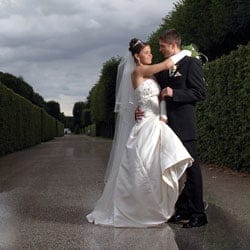
Learn how to make photos more dramatic with calm puddles. In this Photoshop tutorial, you will learn how to work with layers, transform tools, and layer masks to create photorealistic puddles.
Preview of Final Results
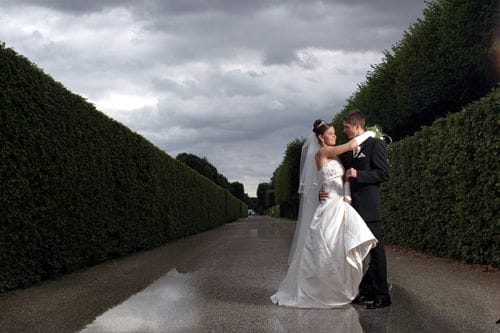
Photorealistic Puddles Photoshop Tutorial
Step 1
Open an image that you would like to add puddles to. Of course, the picture needs to have to have a floor.

Step 2
First, we’ll need to create a duplicate of the layer. This layer will be used to apply the puddles and reflections.

Step 3
Create a selection of the floor. If you are using Photoshop CS3, you can use the quick selection tool to quickly create the selection. Otherwise, you can use the magic wand, magnetic lasso, or other selection tools.

Step 4
In the Layers palette, click on the add layer mask button. You should now have a layer mask with the shape of the floor as the white areas in the mask. If you got it backwards (shape of floor is black), you can choose Image > Adjustments > Invert to invert the layer mask.

Now unlink the layer with the layer mask. To do this, click on the  button beside the layer thumbnail and the layer mask thumbnail.

Step 5
Now we’ll create a reflection on the floor. This is a very simple trick and will make the floor look like a mirror. Currently, you should have the layer mask selected. Click on the layer thumbnail in the layer mask to select the layer (and not its layer mask).

Choose Edit > Transform > Flip Vertical. Your floor should have an effect like the image below.

The floor looks a little bit awkward because it isn’t aligned properly. To fix this, choose the move tool from the tool bar and move the layer so that the horizon of the current layer meets the horizon of the original image.

Step 6
We got the mirror floor, but there seems to be a problem with the reflection of the bride and groom. To fix this, we’ll create a separate reflection for them.

First, press Ctrl+J to duplicate the layer. It should only duplicate the layer without the layer mask. If you get another layer with another layer mask, click on the new layer mask then click the trash button in the layers palette to delete it. With the new layer selected, hold the Alt key on your keyboard and click between the top two layers. This will create a clipping mask. A clipping mask uses the layer below as the layer mask.
One response to “Photorealistic Puddles”
-

Hiya, I love your tutorials!
Hopefully you can help me out. I get everything to work perfectly until step 9. I select the mask in the group layer palette and then selest a brush with the desired settings, but when I brush on the image nothing happens. I even tried the eraser tool and nothing. I just don’t get it. What am I doing wrong? Hope you can help. Thank you!

Leave a Reply