
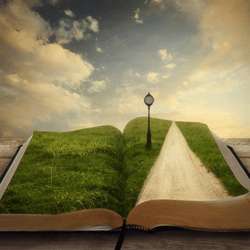
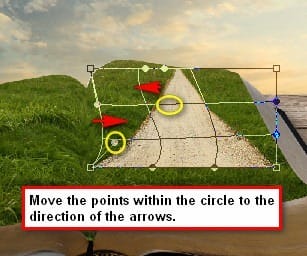
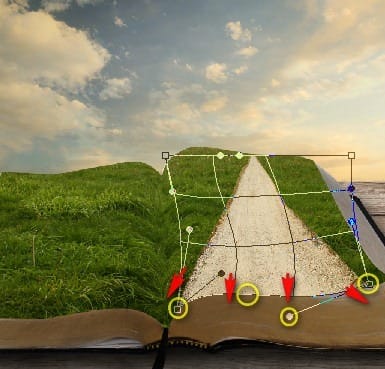
The result should be similar to this:
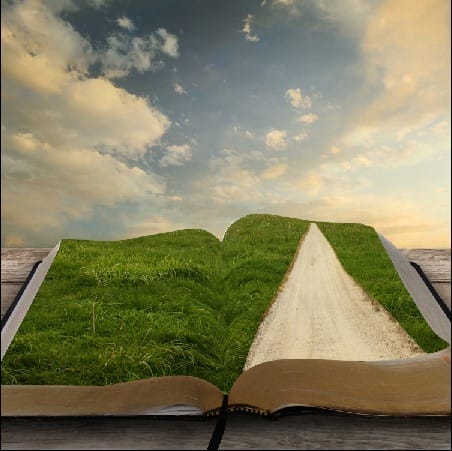
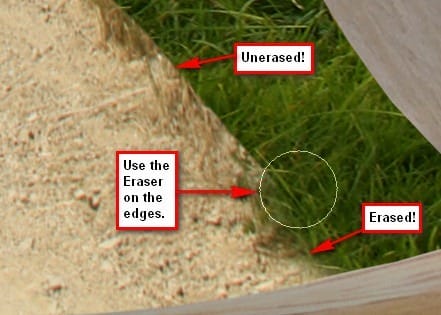
After that, we’ll have to erase some edges of the road to make it blend with the grass. Activate the Eraser tool (E) and input the following settings:
- Brush size: 100 px
- Hardness: 100%
- Opacity: 100%
- Flow: 100%
Use the following zoom setting on the Navigator window:
- 100%
See image below for instructions:
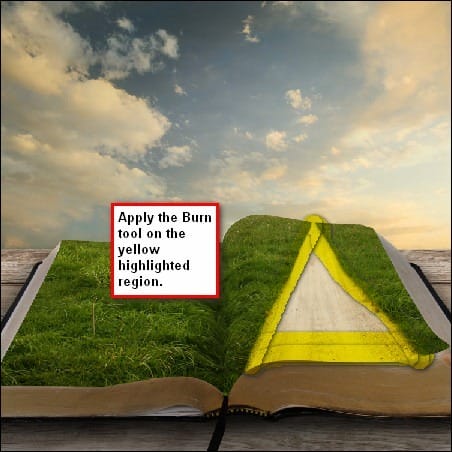
Next, let’s darken the edges of the road; activate the Burn tool (O) and input the following settings:
- Brush size: 200 px
- Hardness: 0%
- Range: Midtones
- Exposure: 25%
Apply the Burn tool on the region indicated on the image below:
Next let’s create a new layer (Ctrl/Cmd + Shift + N) and name it light and position it above all the layers. We’re going to paint some light on the part of the book where the light shines. Activate the Brush tool (B) and input the following values:
- Brush size: 1000 px
- Hardness: 0%
- Opacity: 15%
- Flow: 100%
Now we would also change the Brush’s color, to do that, click on the Foreground Color box to activate the Color Picker menu.
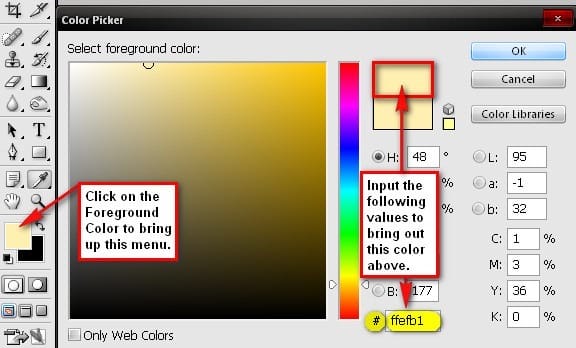
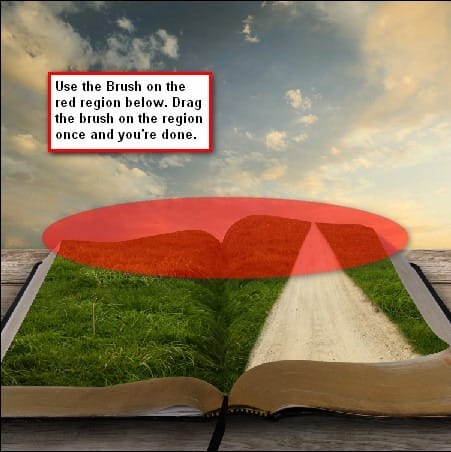
We’re now ready to brush in some yellow light on the image. To proceed, follow the instructions below. After that, select all the layers that we just did and press Ctrl/Cmd + G to group them. Rename the group now to grass.
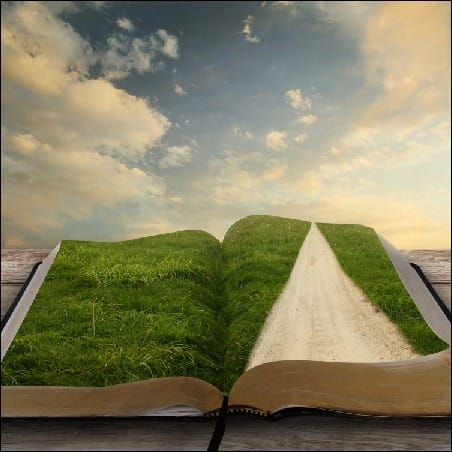
Step 5 – Add the street clock
What we are going to do here is that we would be adding our street clock. To do that, let’s open the Street Clock stock image. You’d notice that this image is saved in the PSD format, which means we can just use the Move tool (V) to drag the street clock to our canvas without cutting it from its background.
After you’ve moved it to our canvas, change the layer’s name to street clock and then change its Brightness/Contrast to make it blend with the rest of the images. First, make sure that the Street clock image is selected and then click on Image > Adjustments > Brightness/Contrast and then apply the following settings:
- Brightness: 5
- Contrast: -15
Next, let’s transform the image and make it smaller. See image below:
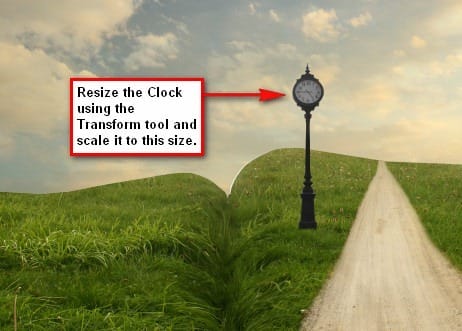
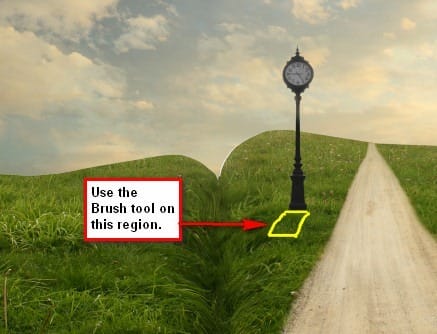
After that, let’s create a new layer and rename it as clock shadow. Put this layer under the Street Clock layer because we’re going to create the clock’s shadow.
Activate the Brush tool (B) and input the following settings:
- Brush size: 175 px
- Hardness: 0%
- Opacity: 15%
- Flow: 100%
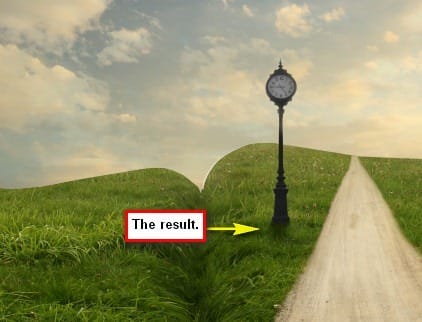
Next, let’s brighten the clock by using the Dodge tool (O).
15 responses to “Make a Story Book Come to Life in Photoshop”
-

Thanks a lot! Your tutorial is very useful. Your approach is very helpful to into all the details =) Here is my version http://milanaserk.deviantart.com/art/Once-Upon-a-Time-482135725?ga_submit_new=10%253A1410641999
-
suche a good tutoriel
-
doy!
-
awsome tutorial
-
thank u. very much
-
Please add the links again.. I want to try this!
-
Thank you for posting a tutorial that actually works. Not only that, I learned a few things.
Once again, thank you. -
i am make a book
-
Beautiful tutorial and I want to try but stock links broken?
-
Yes the stock links seem broken. That is the downsides of using free stock photos; they can sometimes disappear without any warning.
-
-
most links of stock were died, who can give me links??
Thx-
Thanks for letting me know! I’ve updated the links including the long road picture. There was one picture that I couldn’t find the link for but it’s just a cloud picture that’s easily found somewhere else.
-
-
Great tutorial! I really love it! I only have one problem… It seems the image of the long road is not available anymore :( Any chance you know where to find it or maybe mail it to me? I can’t find any other good images to use as replacement. Thx
-
used this tutorial for my Lotr fan art http://d24w6bsrhbeh9d.cloudfront.net/photo/6009214_700b.jpg
-
OMG ! , i saw it … it was amazing , a really great masterpiece ^_^ ….. keep up the great work !
-


Leave a Reply