
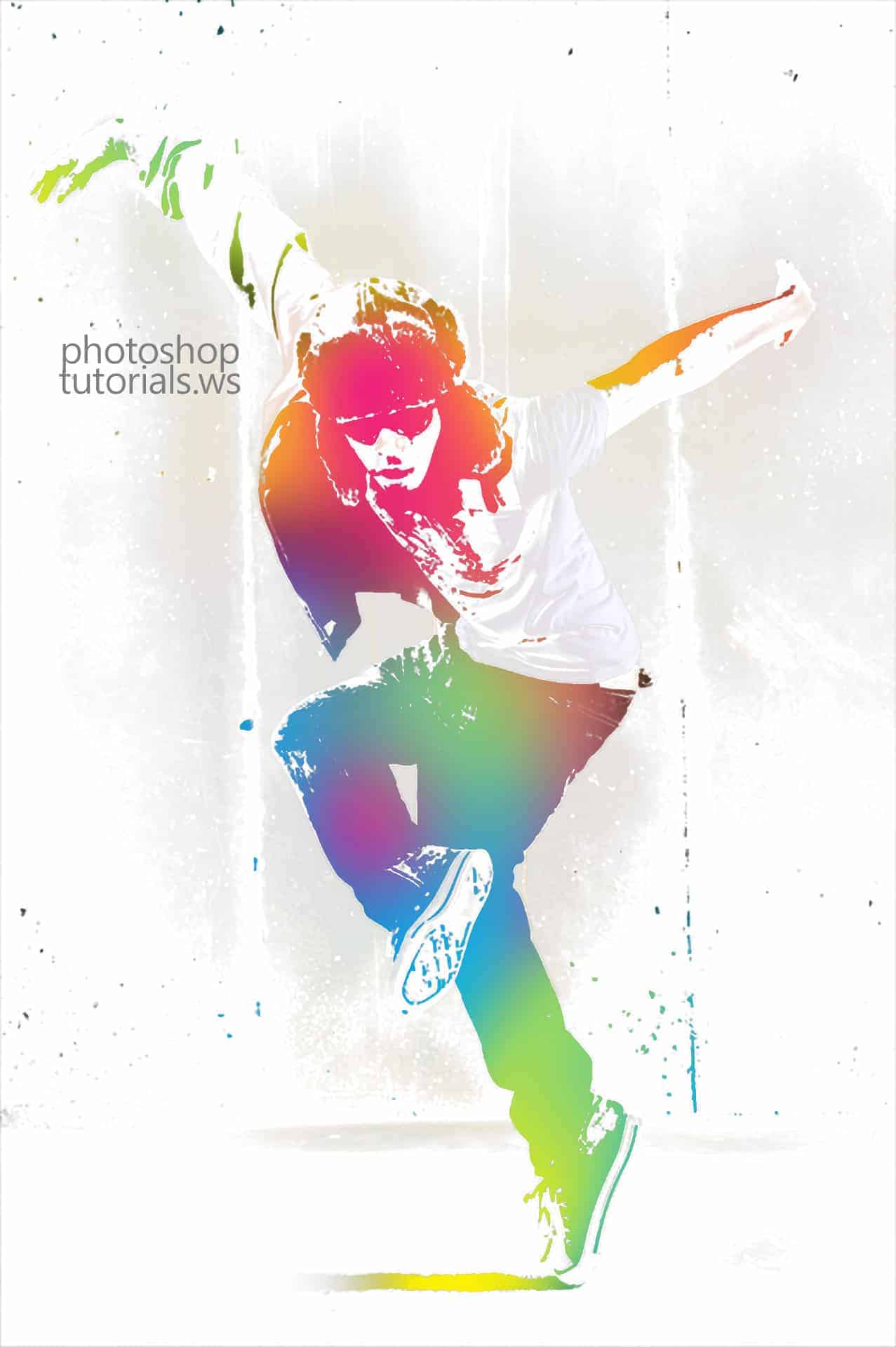
Urban Ink Photo Effect
Learn how to create this photo effect with just two layers by using all blending options instead of layer masks. This photo effect works great on photos with a simple background. Example Photoshop documents included.
Right-mouse click on the top layer then choose Blending Options.

While holding down the Alt key, drag the white input slider in the Underlying Layer setting towards the left. Click OK when done. If you are working on an image with a dark background, you may have to adjust the black input slider instead.

Here’s what our image looks like after the adjustment.

In the Layers palette, click on the
button to create a new layer.

Right click on the current layer then choose Blending Options.

While holding down the Alt key, drag the white input slider from the Underlying Layer settings towards the left. You won’t see any effect yet but this will help us preview the final results when we add color to the image in the next step.

Solid Ink Splatter Photoshop Brushes Preview Download the Photoshop Brushes These brushes may be used for commercial or non-commercial work....