
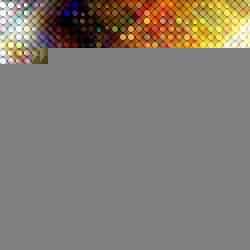
Turn a regular photo into a high-tech digital artwork.
Digital Star Effect Photoshop Tutorial
Creating the Dots – Part One
First, we’ll transform a photo into a series of circles. This is done by combining several filters.
Step 1
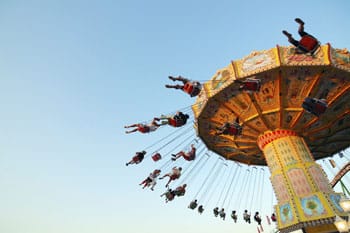
Open an image to edit.
Step 2
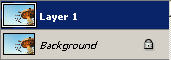
Duplicate the layer (Layer> Duplicate Layer or Ctrl+J).
Step 3
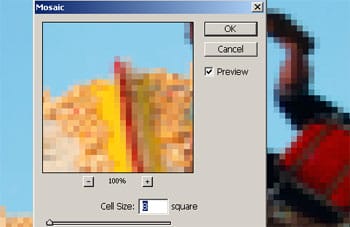
Select the new layer and apply a Mosaic filter (Filter> Pixelate> Mosaic) with a Cell Size of 8 square.
Step 4
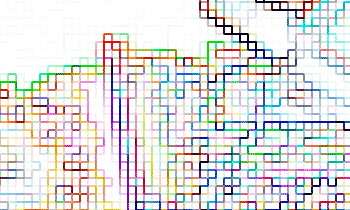
Apply a Find Edges filter (Filter> Stylize> Find Edges).
Step 5
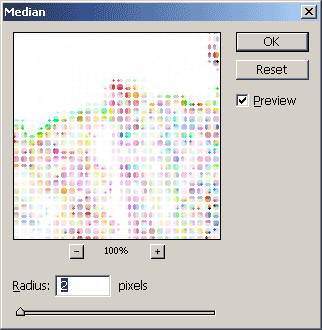
Apply a Median filter (Filter> Noise> Median) with a Radius of 2 pixels.
Step 6
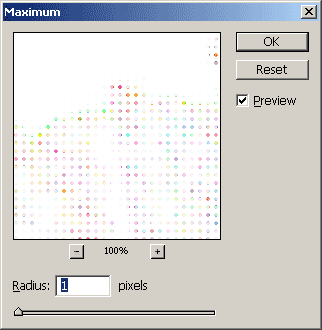
To reduce the size of the dots, we’ll use the Maximum filter (Filter> Other> Maximum) to enlarge the white areas. Use a Radius of 1 pixel.
Step 7
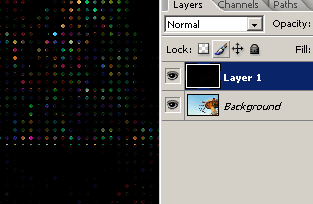
Invert (Image> Adjustments> Invert or Ctrl+I).
Creating the Dots – Part Two
Now we’ll create the outline of the circles. This layer will also be reused to create the star effect in the next page.
Step 8
Duplicate the top layer (Layer> Duplicate Layer or Ctrl+J) and change the blending mode to Screen.
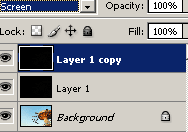
Step 9
Apply a Find Edges filter (Filter> Stylize> Find Edges).
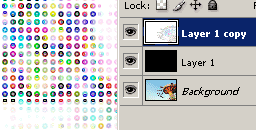
Step 10
Invert (Image> Adjustments> Invert or Ctrl+I).
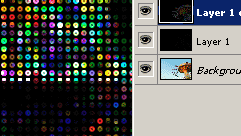
The Star Effect
In this section, we’ll add the star effect. This is done using the motion blur filter.
Step 11
Duplicate the top layer twice (Layer> Duplicate Layer or Ctrl+J).
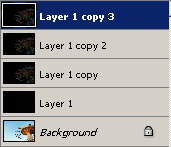
Step 12
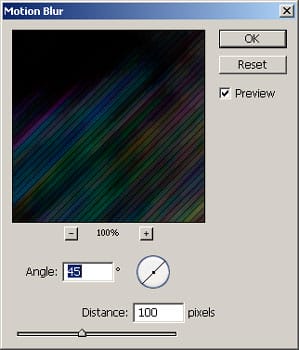
Activate the top layer and apply a Motion Blur filter (Filter> Blur> Motion Blur). Set the angle to 45º and the distance to 100 pixels.
Step 13
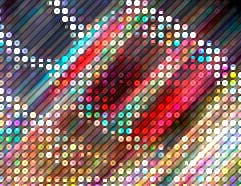
Apply an Auto Levels (Image> Adjustments> Auto Levels or Shift+Ctrl+L).
Step 14
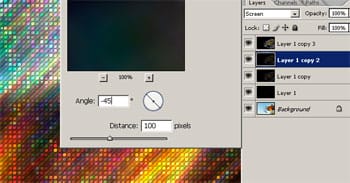
Now we’re going to do the same steps againusing a different Motion Blur angle on a different layer. Activate the layer below (Layer 1 copy 2) and apply a Motion Blur filter (Filter> Blur> Motion Blur). Simply type a “-” sign in front of the 45º and click OK.
Step 15
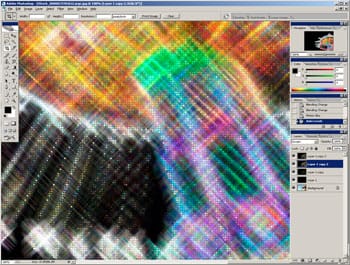
Apply an Auto Levels (Image> Adjustments> Auto Levels or Shift+Ctrl+L).
Step 16
Add a Brightness/Contrast adjustment layer (Layer> New Adjustment Layer> Brightness/Contrast) and adjust the settings to get the results you want.
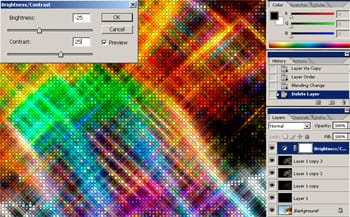
Final Results
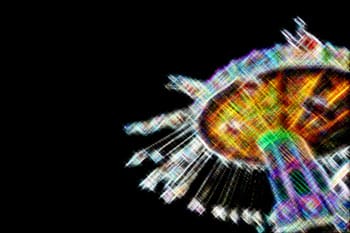

(Click to view the 100% full size image)
10 responses to “Digital Star Effect”
-

thak you. i’am korean
it was very awsome. -
I used your tutorial to create a picture that I would like to use in my portfolio. If you would like to see the picture you can find it here….https://lpkautz.wordpress.com/my-works/#jp-carousel-73. I would like your permission to use the photo I made using your tutorial.
-
WTF IS THIS!
-
Great Work!
-
Really an amazing tutorial. Step by Step tutorial and easy to understand. Great Work.
-
Is it meant to stop at step 7? Because that doesn’t look like what it does at the top
-
Magnificent, Tks!
-
superb
-
Great tutorial, very useful. I made some festive textures with this technique. Thanks!
-
Great tutorial, very useful. I made some cool textures with this method. Thanks!


Leave a Reply