
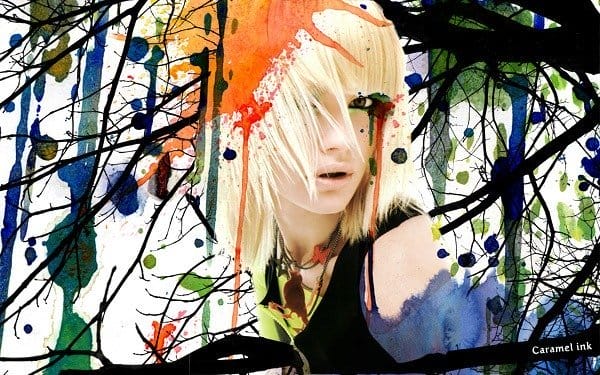
Fashion Watercolor ArtworkReviewed by Carine Ma on May 7Rating:
The tricks you’ll learn here can be applied in any design that requires a stunning background to bring the person/product to life.
Preview of Final Results
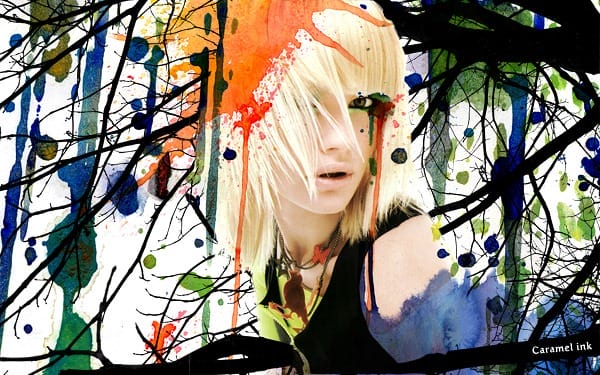
Download the PSD
Watercolor Fashion.psd | 28 MB
Download from Website
Fashion Watercolor Artwork Photoshop Tutorial
Tutorial Details
- Program: Photoshop Cs3
- Difficulty: Beginner
- Estimated Completion Time: 45 mins
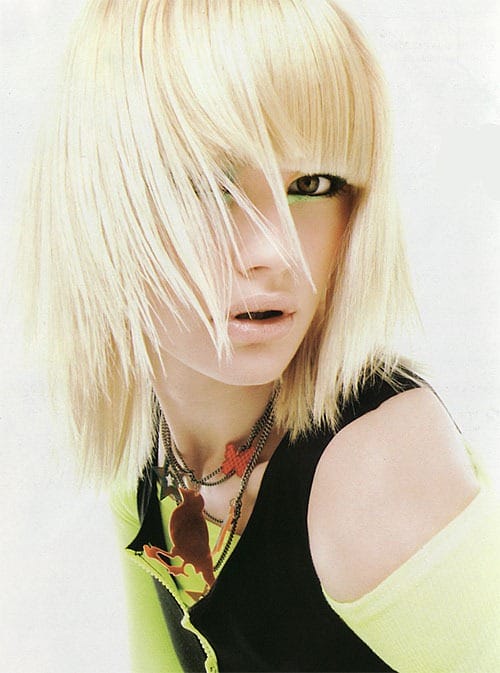
Let’s start by choosing our photo. The model’s pose is crucial in a fashion artwork. An excellent fashion photo will have the model in a stylish and effortless pose. A well lit photograph goes without saying. For this tutorial I’ve picked this beautiful stock image from Katanaz.
Step 2
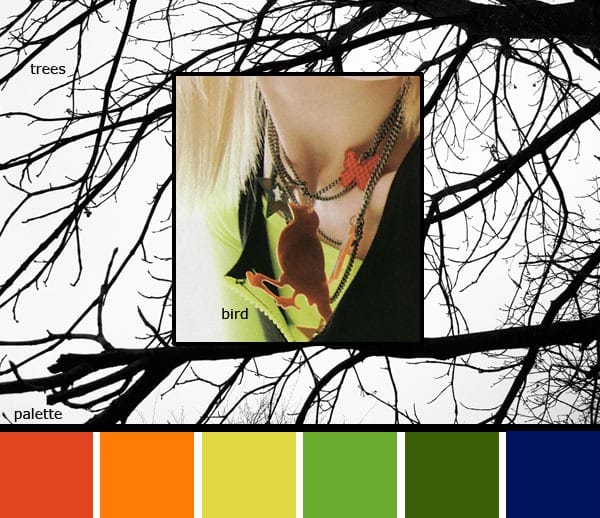
Next brainstorm ideas for the background artwork. You should ask yourself " What elements can I use to complement the model". Even when doing an artistic background with watercolor splashes, you should have a theme and use design elements that will enhance the model/product. Here my inspiration came from the lovely bird necklace and the bright yellow and orange tones. They make me think of a forest in summer. Hence the treesand the summer color palette.
Step 3
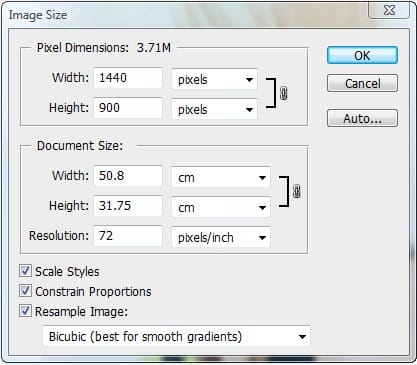
We’re now ready to begin our artwork! Let’s say we create this artwork for a fashion website. The rule of thumb for a website is to have the width at 960px but we’ll create our artwork larger so that people with wider screens can view more of the background. Create a new canvas of 1440 x 900 pixels, 72 dpi.
Step 4
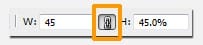
Paste the picture of the model and rename the New Layer "model". Resize (CTRL + T) the image proportionately to 45% of it’s original size. Apply a default Filter > Smart Sharpen to sharpen the image.
Step 5
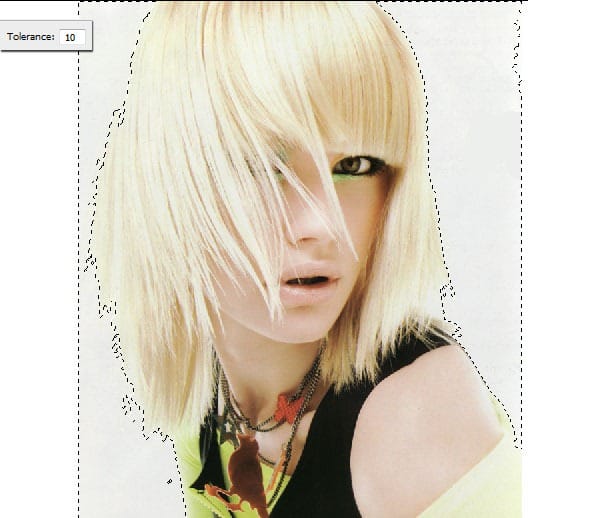
Now let’s remove the gray background behind the model. Use the Magic Wand Tool, Tolerance 10, click to make a quick selection on the left side background. Next hold Shift and click on the right side background to add it to the selection.
Step 6
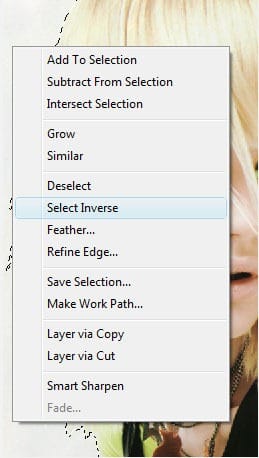
Right Click on the canvas and choose Select Inverse from the drop down menu.
Step 7
With the Magic Wand Tool still selected click on Refine Edge. This will allow you more control to refine the edge of our selection. It is a quick and easy tool that you can use in most projects where you need to extract a background.

Step 8
Click on Add Layer Mask at the bottom of the Layers Window. As you can see the hair needs some work. The advantage with using a Layer Mask is that you can hide/un hide selected parts of your work to your heart’s content without having to worry about losing your original image.

Step 9
We’ll now use the Eraser Tool with a Stipple Brush (from the Natural Brushes Set) of size 8px to add in strands of hair.

Step 10
Use the Brush Tool with the same Stipple Brush to extract areas of the background or part of the hair that you don’t want to show. Use the Eraser & Brush Tools alternately until you are satisfied with the result.

Step 11
Add the tree graphic into a New Layer "Trees". Place this layer behind the "model" layer. Resize the tree graphic proportionately such that the width size is similar to the canvas.

Step 12
Now let’s adjust the colors of the model and brighten her. Create a New Adjustment Layer > Levels.

Step 13
Adjust the settings as below. To make the areas darker, move the left handle to the right and to make the light areas lighter, move the right handle to the left.


Step 14
Let’s make the model blend in better with the background. Select the model’s Layer Mask. Use the Brush Tool, choose a larger stipple brush of about 26px.

Step 15
Paint over areas like the cropped shoulder and let some branches show through as below. Keep the edges rough for the style.

Step 16
Now the fun part, adding watercolor splashes! Select watercolor shapes that are long and fine as well as some small splatters (to look like leaves). This watercolor design is perfect for our summer forest theme.

Step 17
Paste the image into a New Layer "watercolor 1" above all other layers. Resize it to 50%. Change the layer’s blending mode to Multiply. Move the image around until you are satisfied with its position.

Step 18
Add a Layer Mask to "watercolor1". Remove some of the watercolor drips in front of the model’s face with a round brush, 90px.

Step 19
Choose another nice watercolor texture. I’ve picked this orange watercolor because I find it very dynamic and vibrant. Let’s place it on the model’s head to look like an original hat or a splash of sunlight.

Step 19
Paste the orange watercolor image into a New Layer "watercolor 2" above "watercolor1". Resize it to 15%. Change the layer’s blending mode to Multiply. Position the splash above her head.


Step 20
Make this drip fall vertically. Copy and Paste the selected part on a New Layer "drip1". Make this layer invisible for now as we’ll work on "watercolor 2" first.

Step 21
Follow Step 18 to remove the extra watercolor drips but this time use smaller brushes for the drips ends. Use the Smudge Tool to refine the ends.

Step 22
Rotate "drip1" and position it as below. Add a Layer Mask to "drip1" and use the Brush Tool to remove the top overlapping watercolor.

Step 23