
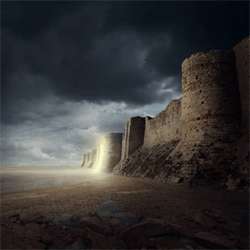
Learn how to create this mysterious image of a gigantic castle in a stormy background. In addition to combining stock photos together, you’ll learn how to create a stormy background and lighting effects.
Create a Gigantic Fortress with a Mysterious Glow in PhotoshopReviewed by Michael Vincent Manalo on Feb 6Rating:
Step 5: Create the Mysterious Light
Now, let’s add the mysterious light that came out from the mouth of the gate. Let’s start by creating a new layer (Ctrl/Cmd + Shift + N) and name this layer to “Light”. Make sure that you create this layer above the “darken wall” layer. Activate the Brush tool (B) and input the following:
Brush size: 1400px
Hardness: 0%
Opacity: 25%
Flow: 100%
#: ffffff
Now that it is set, let us create the light:
The result:
Next, let’s create the light from the mouth of the gate. Start by creating a new layer (Ctrl/Cmd + Shift + N) above the “light” layer; name this new layer to “light from within 1”.
Activate the Brush tool (B) and input the following:
Brush size: 50px
Hardness: 0%
Opacity: 100%
Flow: 100%
#: fffed8
Now, let us begin painting:
The result of that should be similar to this:
Next, create another layer (Ctrl/Cmd + Shift + N) and name it “light from within 2”. Put this above the “light from within 1” layer. Activate the Brush tool (B) and input the following:
Brush size: 175px
Hardness: 0%
Opacity: 50%
Flow: 100%
#: fffed8
Now, let’s paint:
The result of that should be similar to this:
Next, create another layer once again (Ctrl/Cmd + Shift + N) and name it “light from within 3”. Activate the Brush tool (B) once again and input the following:
Brush size: 80px
Hardness: 0%
Opacity: 25%
Flow: 100%
#: fffed8
The result:
Next, we will create another “light from within”. Create a new layer (Ctrl/Cmd + Shift + N) and name it “light from within 4”. Activate the Brush tool (B) and input the following:
Brush size: 80px
Hardness: 0%
Opacity: 25%
Flow: 100%
#: fffed8
Now, let’s paint:
The result of that should be similar to this:
Finally, let’s create the last one. Create a new layer again (Ctrl/Cmd + Shift + ) and name it “light from within 5”. Activate the Brush tool (B) and input the following:
Brush size: 80px
Hardness: 0%
Opacity: 25%
Flow: 100%
#: ffffff
Let’s paint:
The result:
Now, let’s darken the whole castle wall and ground. To do that, let’s create a layer (Ctrl/Cmd + Shift + N) above all the layers and groups and name it “Darken image”. Once the layer is created, activate the Brush tool (B) and input the following:
Brush size: 1600px
Hardness: 0%
Opacity: 15%
Flow: 100%
#: 000000
Let’s paint now as shown on the image below:
The result:
Now that we’re done with the mysterious light, select all the layers from Step 4 – Step 5 and group these (Ctrl/Cmd + G). Name it to “WALL”.
Step 6: Create the Vignette
In this step, we will learn how to create a vignette which will help enhance the focus on our subject. To start, go to the Menu bar and click on File > New and use the same settings we used to create our canvas. (Refer to Step 1). Take note, the background contents should be white. Once it has been created, go to Filter > Distort > Lens Correction. Find the tab Vignette and use these settings:
Vignette amount: -100
Midpoint: +50
Now that that’s done drag the vignette to our canvas using the Move tool (V) and put it on top of all the layers that we’ve created, and then set the following:
Blending mode: Multiply
Opacity to 40%
To set the blending mode, simply click on the drop-down menu beside the word “Normal” on the top part of the Layer window. The Opacity is located just beside that drop-down menu as well. See image below:
The unblended Vignette will look like this:
Once the blending mode is set to “Multiply” it would look like this:
Step 7: Enhance the Image’s Color and Contrast
Now, we will be enhancing the image’s overall color, contrast and lightness. To start, let’s create a Solid Color adjustment layer to enhance the color of the image. From the Layer window, click on the “Create New Fill/Adjustment layer button”.
Once the contextual menu opens, click on Solid Color:
Now, clicking on the Solid Color option will open the Color Picker box. Now, input the following on the #: space.
#: 000218
Now, your screen will be filled with this dark blue tinge. To change that, we’ll need to blend it in. Change the Blending mode and Opacity of this layer to the following:
Blending mode: Exclusion
Opacity: 40%
Next, create another Solid Color adjustment layer through the “Create New Fill/Adjustment layer button”. This time, input the following:
#: edbb36
Once you’re done, change the Blending mode, Opacity and Fill to the following:
Blending mode: Soft Light
Opacity: 20%
Fill: 40%
Now, let’s create a Gradient Map adjustment layer through the “Create New Fill/Adjustment layer button”.
Now, when the Gradient Map box opens, do the following as shown on the images below:
You’ll notice that your image is now Black and White, so let’s change the Blending mode and Opacity to the following:
Blending mode: Luminosity
Opacity: 60%
Next, let’s enhance the Hue/Saturation of the whole image.
Once it opens, input the following:
Edit: Master
Hue: 0
Saturation: 15
Lightness: 0
Finally, let’s enhance the Brightness/Contrast of the whole image, so let’s create a Brightness/Contrast adjustment through the “Create New Fill/Adjustment layer button”.
Thank you for visiting this page and following my tutorial, I hope that this tutorial was able to help you. If you want to see some of my art works, feel free to check my website: http://www.wix.com/theflickerees/michaelVmanalo
very nice tutorial, explained very well! thanks a alot