
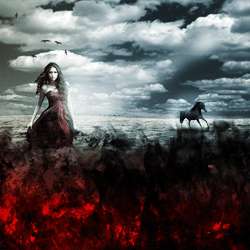
Notice that I group my layers to keep them nice and tidy. I will not tell you at every step to group the layers but it is a good practice and can make future modification much easier.

Step 5
Adding direction lights it’s easy. First select the Pen tool and make a polygon like below. Press Ctrl + Enter to transform the path into selection and fill this selection with white (Shift + F5 and choose white from the drop-down menu). Press Ctrl + D to deselect and apply a 50-60px Gaussian Blur. Lower the opacity to 50%. Now to give our light a blue color make a new layer (Ctrl + Alt + Shift + N) and select the same color as in the step 4 (remember the color we applied to the right side of the girl? -#aeccff). Now with a round soft brush at 10-20% opacity brush once or twice over the beam of light. Alt + click in between the color layer and the light layer to limit the blue color only to the beam of light. Make yet another new layer and using a soft round white brush at 10-20% opacity dab once or twice where the source of the light should be. All you have to do now is to group these light related layers and free transform the group as a whole to arrange the lights. For our scene I added a second beam of light.
If the after repeated Free Transforms you get hard edges of light, simply paint them away in the layer mask using a round, black soft brush.
Clipping layers is a very important concept to know if you want to do anything decent in Photoshop so go ahead and study the help file or search for addition information on the Web because I will not be covering this in the present tutorial.

Step 6
In this step we will make the red fire at the bottom of our scene.
Import the “Fire” brushes with the Preset Manager and make a new layer (Ctrl + Shift + Alt + N).Place this layer on top of all other layers and select a light red color (#fc1221) as a foreground color and black as background color. I will be naming this layers from 1 to 9 to make it easier for you to follow. Your results will probably be different than mine and it is perfectly normal. Don’t forget to vary the size of the brush at each layer and to select from different brushes to avoid uniform results. If the brushes in the resources are not enough than you can search for addition fire brushes on deviant art or in other places on the web.
9 responses to “Create an Artistic Photo Manipulation of a Girl in a Red Field”
-

That was a fun tutorial. I used PSE9 so I didn’t have some of the selections, but it still turned out pretty good. Thanks!
-
Thank you for the great tutorial! It has been very helpful to see a few techniques in action.
-
nice
-
wow,,, good tutorial… :)
-
oh It’s Elena
No wonder why the picture looks so familiar. -
Thank you for providing and amazingly written tutorial. As someone very new to photoshop this was very easy to understand for the most part so I appreciate that you took into account complete newbies by providing things like shortcuts for doing stuff as well as detailed enough but concise explanations. I wish I could find more tutorials of this quality.
The only confusing part to me was the curve adjustment for the girl with the blue and red bit. I didn’t really understand that step but I think there is only so much you can explain without showing it through video or something.
Still an amazing tutorial.
-
woww amazing picture, thanks sob
-
Thank You!
-
Thank You Beautiful !!!!


Leave a Reply