
How to Create a Disturbing Scene of a Flooded Room with a Giant Hand Carrying a FishReviewed by Michael Vincent Manalo on Oct 20Rating:
Preview of Final Results
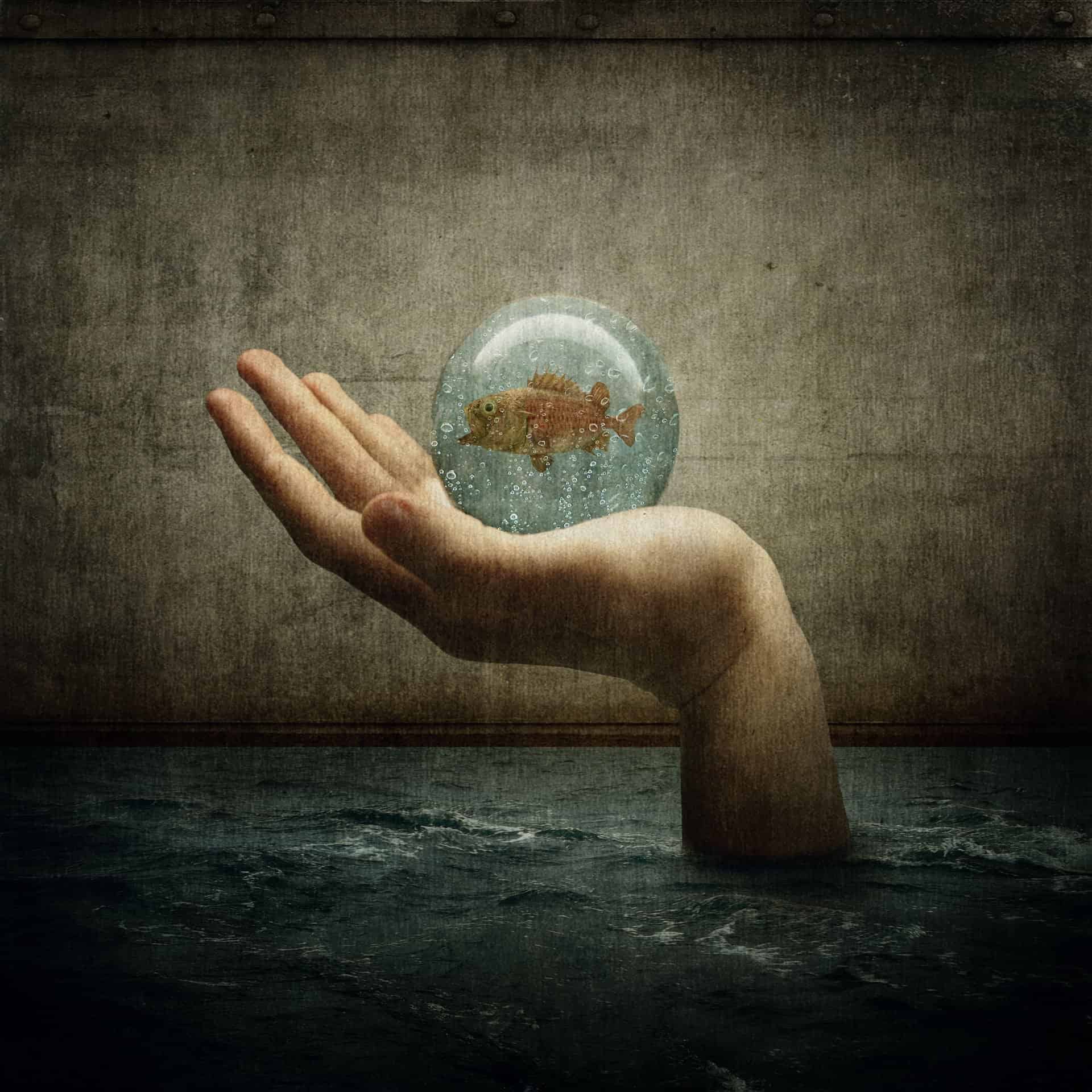
Download the PSD
How to Create a Disturbing Scene of a Flooded
Room with a Giant Hand Carrying a Fish PSD.zip | 189.98 MB
Download from Website
How to Create a Disturbing Scene of a Flooded Room with a Giant Hand Carrying a Fish
Resources
- Wall Texture – shadowh3
- Stormy Sea – darkrose42 stock
- ball3 – LuckyStock
- Scary Fish – xNickixstockx
- Water on glass I – deadenddoll stock
- Grunge – e dina
- Paper Texture 1 – Wojtar Stock
- metal texture 15 – Wojtar Stock
Step 1: Create a New Image File
We will start by creating a new image file, go to the Menu bar and click File > New, and then input the following values on their respective fields:
- Width: 3000 pixels
- Height: 3000 pixels
- Resolution: 300 pixels/inch
- Color Mode: RGB Color; 8 bit
- Background Contents: Transparent

Step 2: Create the Wall
In this step, we will be creating the walls within this dark tunnel. To start, let’s open “Wall Texture” by shadowh3. Once open, activate the Move tool (press V on your keyboard) and then drag it to our canvas by left-clicking and moving it to our canvas.
Once on the canvas, it should appear like this:

Now, we will have to rename this layer to avoid confusion in later steps. To rename a layer, simply double-click on the words: “layer 1” (which is our layer – “Wall Texture”) to prompt a text box to appear. Once that appears, you may now rename the layer to “wall”.
See sample below:

Next, we will have to transform this “wall” to make it look like a wall; to do that, activate the Transform tool (Ctrl/Cmd + T) while the “wall” layer is selected and then resize it as shown below:

The result should be similar to this:

Next, we will fix the light of the walls and to do that we would need to paint on it. To start, click on the Layer window and then create a new layer (Ctrl/Cmd + Shift + N) and then name this layer to “Darken Wall”.
Now, activate the Brush tool (B) and then input the following:
- Brush size: 1200px
- Hardness: 0%
- Opacity: 25%
- Flow: 100%
- #: 000000

Note: The “#” means the color of the brush is black, but to make sure that you will be using that brush color follow the steps below:

After clicking the Foreground tool, the Color Picker box would open. Once open, input the following on the # space:

Now, let’s paint!

The result of that should be similar to this:

Next, let’s create another layer (Ctrl/Cmd + Shift + N) and then name this new layer: “Darken 2”.
Now, activate the Brush tool (B) once again and then input the following:
- Brush size: 1800px
- Hardness: 0%
- Opacity: 15%
- Flow: 100%
- #: 000000
When you’re done, we can now start painting:

The result of that should be similar to this:

Step 3: Create the Water in the Room
In this step, we will be filling this room with water. To start, let’s open “Stormy Sea” by darkrose42 stock. Once open, activate the Rectangular Marquee Tool (M) and select the sea from this image.


Now that you’ve created a selection area around the sea, activate the Move tool (V) and drag the sea to our canvas and position this layer above the “Darken 2” layer.
Position it in the canvas as shown on the image:

Now rename this layer to “Water”.
Activate the Transform Tool (Ctrl/Cmd + T) and resize the “Water” as shown on the image below:

The result:

Now that that’s done, we will now darken the water to make it blend with the light of the room. To start, create a new layer (Ctrl/Cmd + Shift + N) above the “Water” layer and name it “Darken Water”. Once you’ve done that, right click on the layer and choose Create Clipping Mask so that the brush’s paint would only be within the “water” and not spread to the “Wall”.

Now that you’re done, activate the Brush tool (B) and input the following:
- Brush size: 300px
- Hardness: 0%
- Opacity: 30%
- Flow: 100%
- #: 000000
Now, let’s paint:

The result of that should be similar to this:

When you’re done, select all the layers that you’ve created and then group them together to avoid confusion. To group layers, simply select all the layers that you wish (in this case, all te layers) and then press Ctrl/Cmd + G. After that, you’d notice that they are all on one folder.

Note: You may rename the group to “Background”
thank you very much, I liked very much your work
Great tutorial! The steps are very thorough and easy to follow. Thanks!
well done! Thank you.