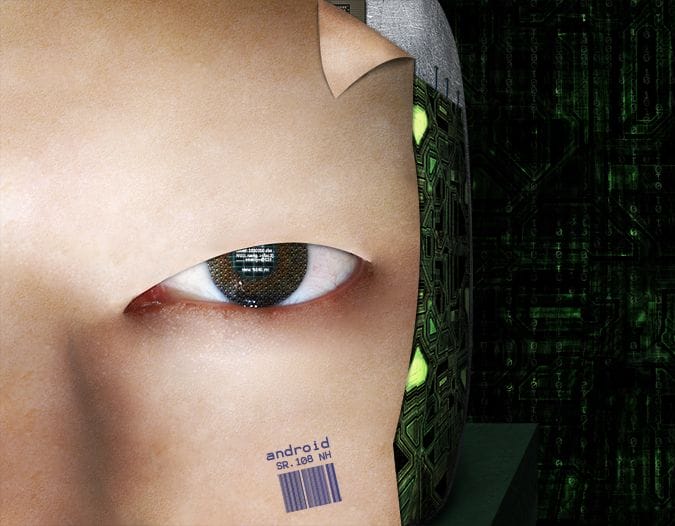
Preview of Final Results


Download the PSD

Cyborg.zip | 60.8 MB Download from Website


Android Photoshop Tutorial


Tutorial Resources


Step 1

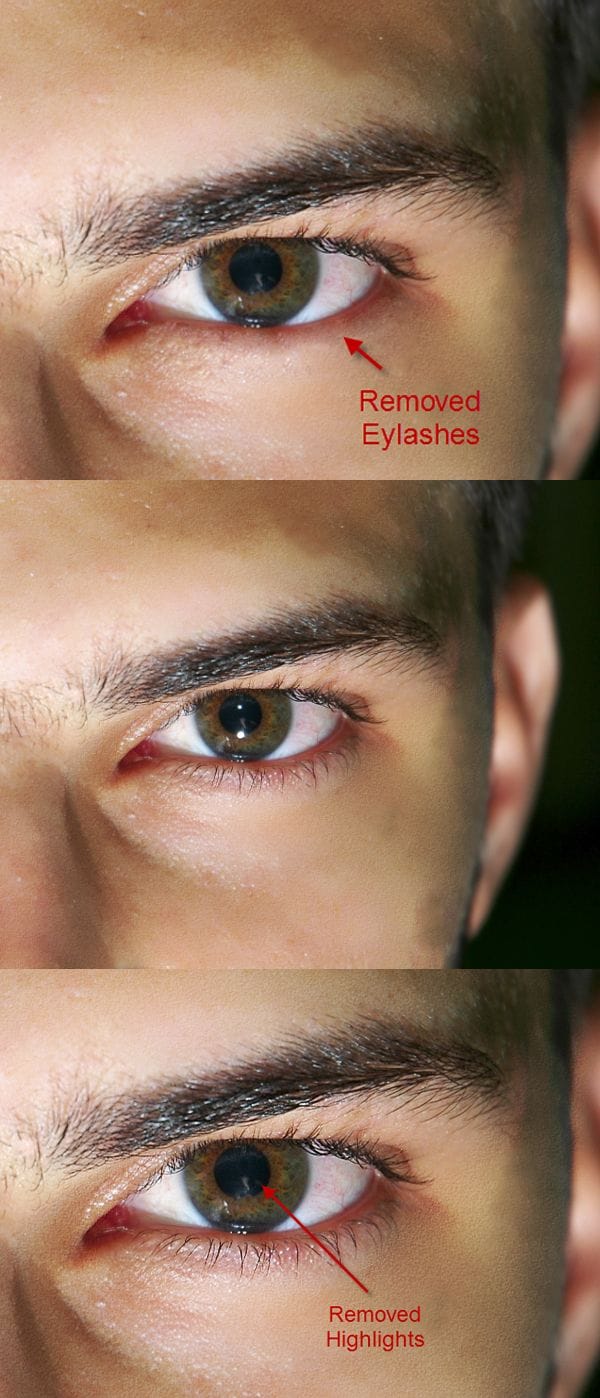
Open file “Face” and crop the left part of the face. First let’s remove the highlights from the pupil. Add a new layer or duplicate the existing one and using the Clone Stamp tool remove the highlights. Next duplicate the existing layer again and remove the eyelashes by using the Clone Stamp tool. If you make any mistakes or if the cloned areas look fake use the Patch Tool. This is the reason I use duplicate layers. TIP (When using Clone Stamp or other tools it is better for the sake of simplicity and the matter of file size to not use duplicates of the background. However, some tools – like the Patch tool – require this step. Be aware if you used the Clone Stamp tool on a new layer and than you are using the Patch tool you might get weird/non results because you are working only with little pixel information. Also if you want to use self-blending – blending a file with itself – don’t use duplicates of the background, rather add a Curves adjustment layer or a Hue/Saturation layer and change it’s blend mode. The results will be the same as if you blended the original background, however the file size will increase very little – which is desirable, especially if you are working with files on the internet or if storage is an issue.)
step-001


Step 2

Time to deal with the face. Select the Healing Brush tool and start working on the areas shown below. Look in the options of the brush tool and make sure Sample is Current&Below. You can also change the brush opacity mode to Lighten if you work in darker areas of the face. Make a selection like shown below than use the Clone stamp tool to fill this area with adjacent samples of skin. Press Ctrl+Shift+Alt+E to make a new layer from all visible than use the Patch tool to refine our new skin area (the area over the eyebrow) and around the eye. TIP (Patch Tool is your friend when doing facial retouching. If after you use the Clone Stamp tool or the Healing Tool an area looks fake and has repeating patterns use the Patch Tool to blend it seamlessly with the surrounding skin. I cannot emphasize enough how important this tool is in facial retouching . When it looks fake use the Patch Tool)

step-002


Step 3

With the new skin selection still active (the skin that replaced the eyebrow) make a new layer and fill the selection with whatever color. Then apply a Drop Shadow effect. Add a layer mask and mask away the unnecessary shadows. Make a new layer and using the Healing Brush tool with Lighten blending mode heal the lower portion of the face. Notice however that because of the healing process the dark shadow from the nose is gone in the process leaving us with a fake face. To correct this add a layer mask to the Healing layer and using a 30% black soft brush mask away some of the healed skin. This step will partially hide our Healing Layer thus revealing some of the shadow underneath. Don’t overdo, a hint of shadow is enough for our imagination to do the rest. Make yet another layer and heal the rest of the face. Don’t trouble yourself with healing the outer part of the face because we will be cutting it off. TIP (When using the Healing Brush tool use lots of layers. This way if you do a mistake you can always revert to an original state. Don’t follow my exact steps, but instead use your own workflow with lots of layers. You can always merge the layers if they clutter – to merge the layers select them and press Ctrl+E.)

step-003


Step 4

Group all face related layers and add a layer mask. Using the pen tool or the lasso tool to make a precise selection like shown below than with the layer mask selected fill this selection with black.

step-004


Step 5

Open file “Metal1″ and press Ctrl+A to select all. Then press Ctrl+C to copy an Ctrl+V to paste it into our document. Press Ctrl+T to free transform it like shown below than move this layer below the group “Face”. Add a layer mask and mask away the areas shown below. Press Ctrl+V again to paste the metal sheet into our document again than add a layer mask and fill it with black. Using a round soft white brush at 100% opacity reveal the areas shown below. Reduce the brush opacity to 20% to mask the transitional areas between metal layers. Add a Curves adjustment layer and use the settings below. Fill the layer mask with black and using a round white soft brush paint over the areas shown below to add some depth the metal skull.

step-005


Step 6

Open file “Chip1″ and select the chip. Press Ctrl+C to copy than press Ctrl+V to paste it into our document. Press Ctrl+T to free transform the chip than place this layer between the “Face” and the “Metal Skull” layer. Add a Drop Shadow effect than add a clipped Hue/Saturation layer to lower the saturation.

step-006


Step 7

Open file “Circuits1″ and press Ctrl+A to select all than Ctrl+C to copy. Press Ctrl+V to paste it into our document then Ctrl+T to free transform the circuit like shown below. Add a layer mask and mask away the outer edge of the circuit. Press Ctrl+V again to paste the circuit again than free transform it so it merges with the first circuit. Add a layer mask to make the transition between the circuits seamless. Add a Curves adjustment layer with the settings below than fill the layer mask with black. Use a round soft white brush at 30 % opacity to brush the outer edges of the circuit in the layer mask. This step will create a better sensation of spatiality. TIP (Dark areas seem to be further away and light areas closer so if you want to make an object look more 3D darken the areas that should be further and lighten the ones that should be closer. Also note that objects further away are less saturated and tend to have a cooler hue than those that are close. And if you really want to perfect the 3d sensation blur the further objects and sharpen the close ones.)

step-007


Step 8

Turn off the visibility of all layers except for the circuits and the curves above them then press Ctrl+Shift+Alt+E to make a new layer from all visible. Add a 2 px Gaussian blur to this layer than add a layer mask and fill it with black. Using a soft round white brush at 50% opacity reveal some of the blurrend areas in the outer portion of the circuits. Turn on the visibility of other layers. Add a Hue/Saturation adjustment layer and reduce the saturation. Then select the Linear Gradient Tool and using black and white as default colors drag in layer mask to reveal only the outer part of the circuits. This way the effects will only be visible on the outer parts. Next make a new layer and change it’s blend mode to Color Dodge. Using a white soft round brush at 10% opacity paint over the areas shown below to make them look like they are lighted from inside the skull. Make yet another new layer and change it’s blend mode to Multiply. Using a soft round black brush at 20% opacity add more shadow to the outer parts of the circuits. Group all these circuits layers and move the group below the “Face” layer but above the “Metal Skull” layer. If you did not masked the circuits in the previous steps than add a layer to this group and mask away the unwanted circuits. Make a selection of all the circuits than on a new layer fill this selection with whatever color you want. Drop the fill opacity to 0% than add a drop shadow effect. Mask away the unwanted shadows.

step-008


Step 9

Let’s add some wires to our circuitry. Using the Eliptical Marquee tool draw a small circle and fill it with black (or any other color). Drop the fill to 0% than add an inner shadow effect. Use a 4 px hard brush tool to connect the hole with the circuits then add the effects shown below to the wire. Group the wire and the hole than duplicate this group two times and make each duplicate smaller than the previous. Arrange them like shown below.

step-009


Step 10

To make the skin fold draw a selection like shown below and fill it with a color sampled from the nearby skin. Then use the Clone Stamp tool to add the skin texture and afterwards use the Burn and Dodge tools to add shade and light to our fold. Basically you should use the Burn tool near the fold and the Dodge tool in the opposite direction. Follow your intuition. Make a new layer and place it below the fold layer. Using a soft black brush tool at 50% opacity paint some shadows. Change this layer blend mode to Multiply. On the same layer paint some shadow on the metal skull.

step-010


Step 11

The skin should have a realistic shadow were is cut so let’s add some. First Ctrl+Click the layer mask of the group “Face” to load it as as selection. Next make a new layer and fill it with any color. Drop the fill to 0% and add a Drop Shadow effect. Mask away the upper part. You can also use a 50% opacity brush to partially mask the area were the shadow meets the light parts of the circuit.

step-011