

Learn how to create this surreal photo manipulation of a violin player in a grassy field. This tutorial will show you how to combine images together to create your own landscape and apply lighting effects.
Preview of Final Results

Violin Player in a Grassy Landscape Photoshop Tutorial
Tutorial Resources
- the calm field – night-fate-stock
- Window – Skittles52Stock
- Dark Tunes 20 – Lynnwest-Stock
- Sunny Field – frozenstocks
- ballons – charlie-stock
- Fish Stock 1 – Shoofly-Stock
- Stormy sea – darkrose42-stock
- Bokeh Texture Pack 002 – regularjane
- Water Brushes Sampler – FrozenStarRo
Step 1: Create a New Image File
Create a new 3500×3500 pixels document (File > New).
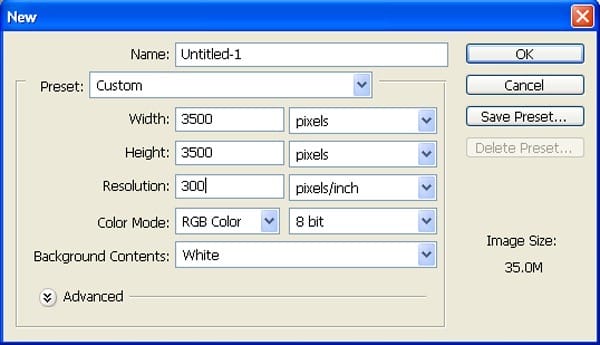
Step 2: Create the Background
First off, let’s open the calm field in Photoshop. We will be using sky from this stock image so we will need to transfer it to our main canvas.
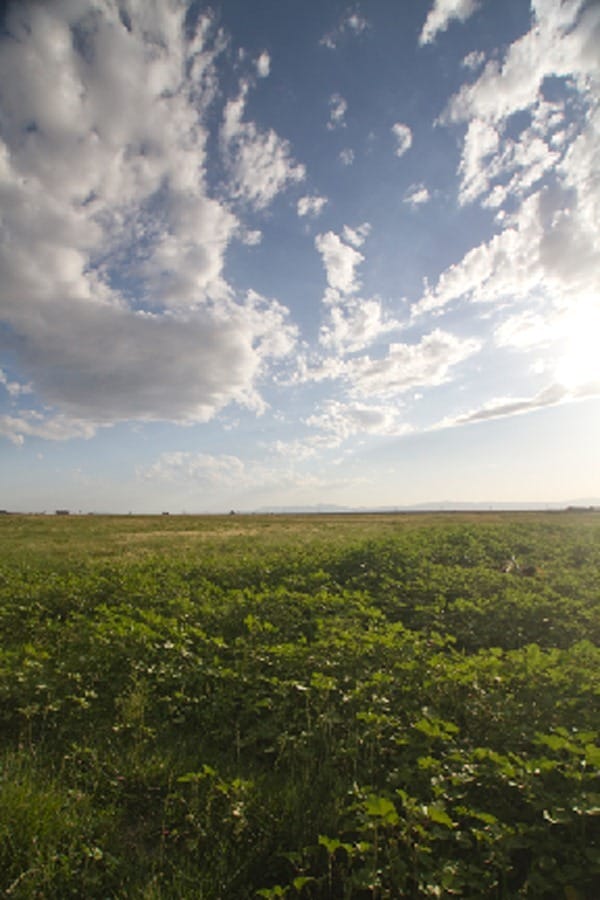
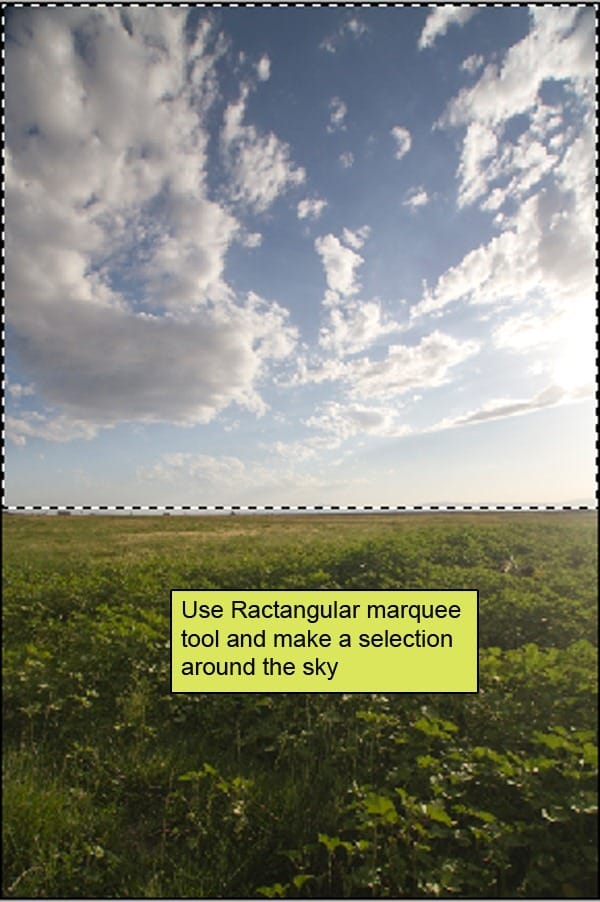
Click the calm field and press M to rectangular marquee tool and make a selection around the sky. Now activate move tool (v) Left-click the image and drag the image to the main canvas and change layer name to “sky”.
The result should be similar to this:
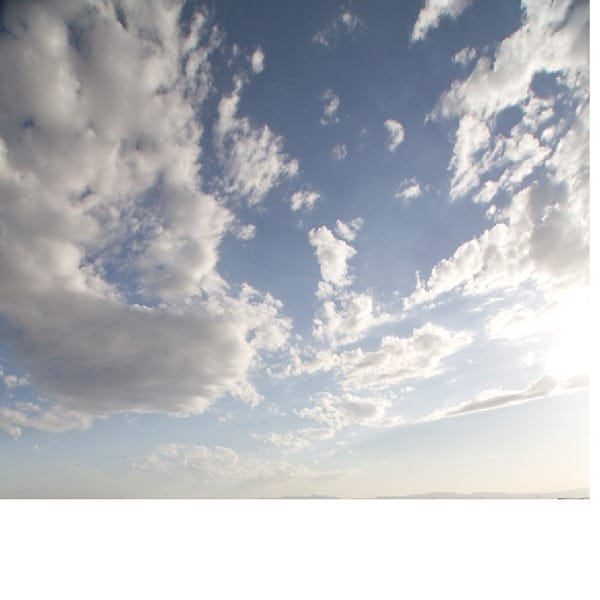
Step 3
Activate transform tool (Ctrl+T or Edit > Free Transform) then scale the mage as shown below:
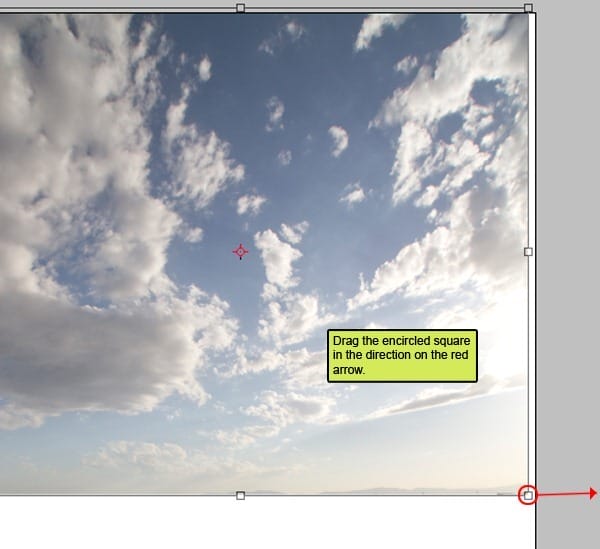
The result should be similar to this:
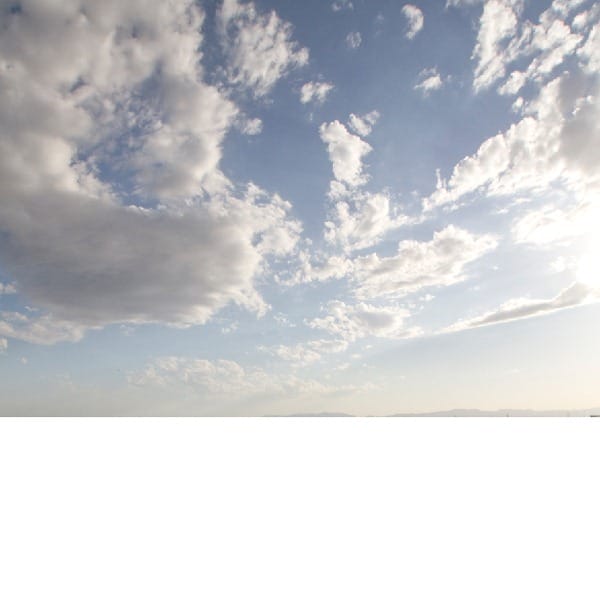
Step 4
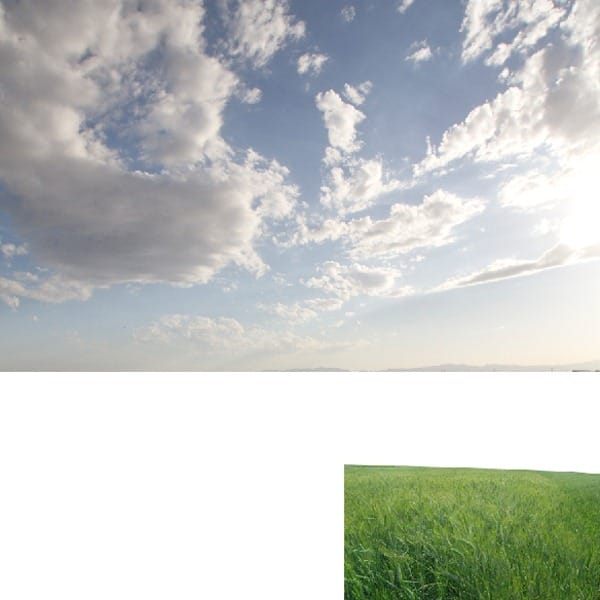
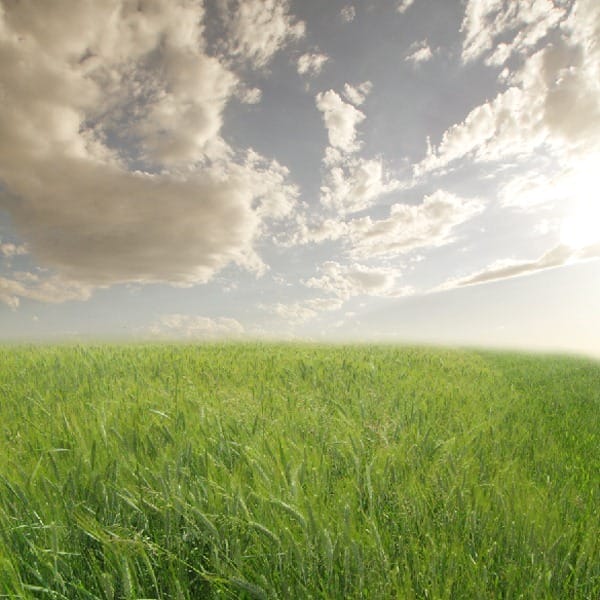
Open the Sunny Field image in Photoshop. We’ll be using the grass field from this image.
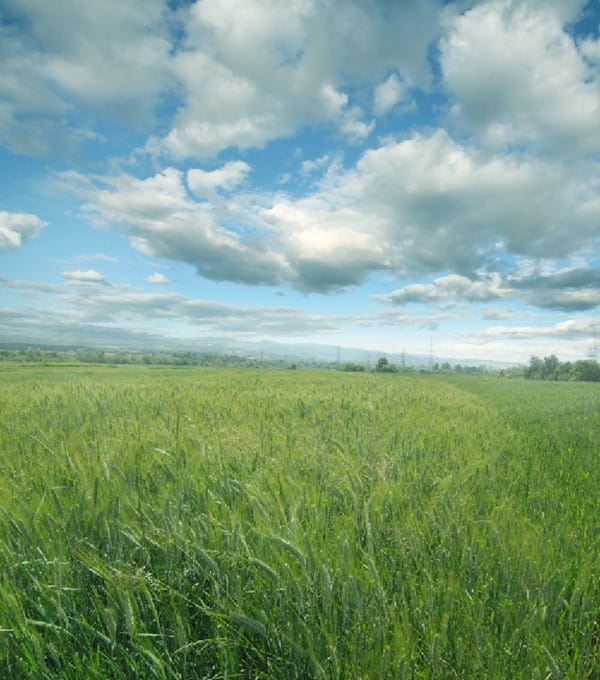
Use the Rectangular or Ellipse marquee too to create a selection like shown in the image below. Copy and paste the selected area into our main document. Rename the new layer to “Ground”.
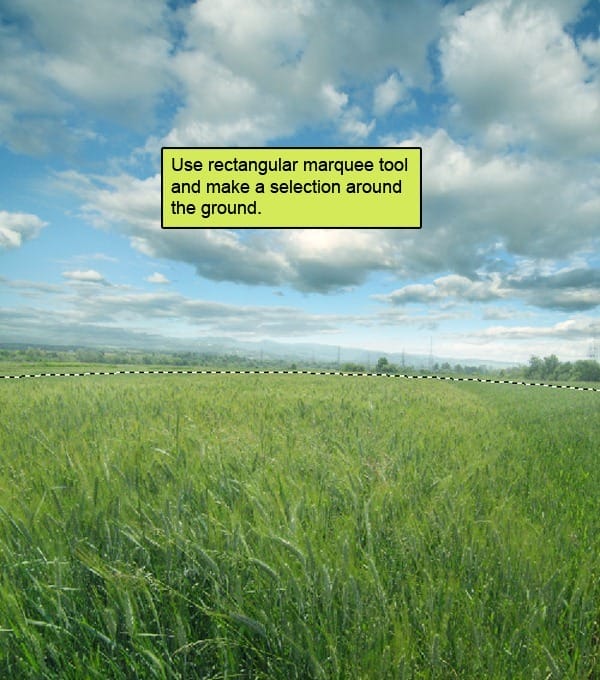
The result should be similar to this:
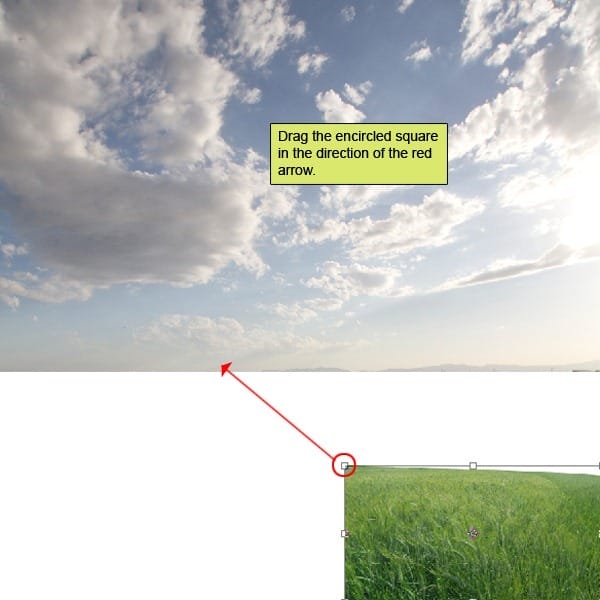
Step 5
Use the Transform tool (Ctrl+T or Edit > Free Transform) to scale the image like shown below.
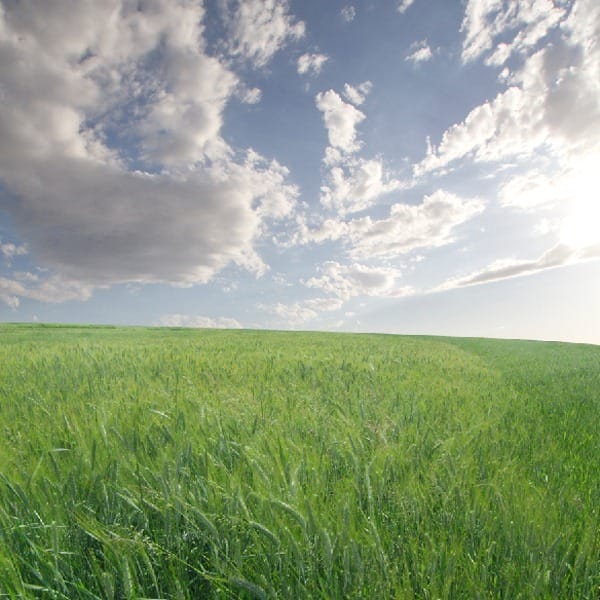
The result should be similar to this:
Step 6
Select the Eraser tool the input the following settings:
- Brush size: 400px
- Hardness: 0%
- Opacity: 40%
- Flow: 100%
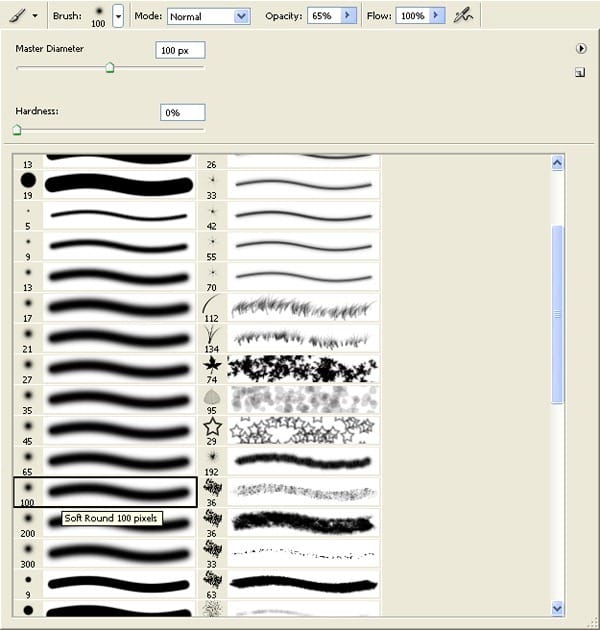
Erase the area shown in the image below.
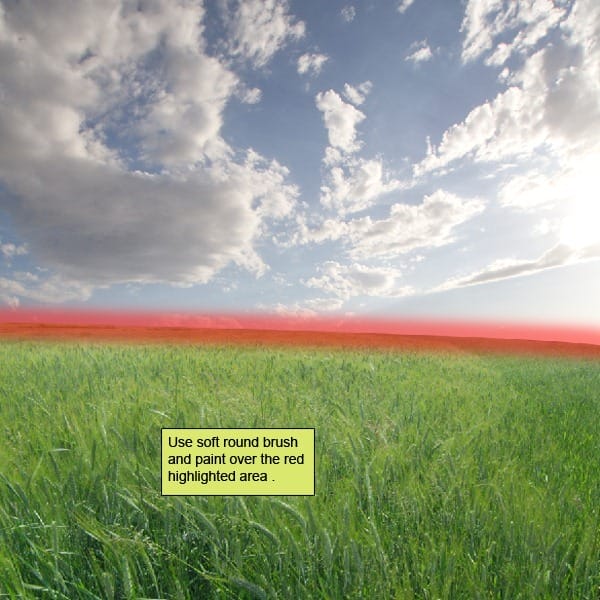
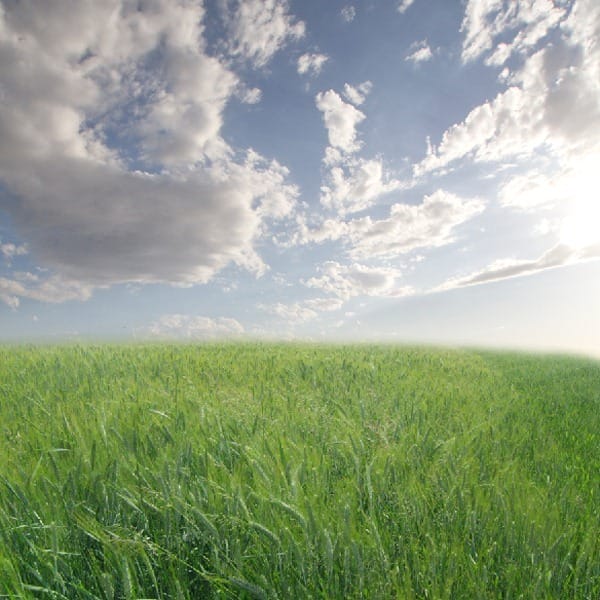
The result should be similar to this:
Step 7
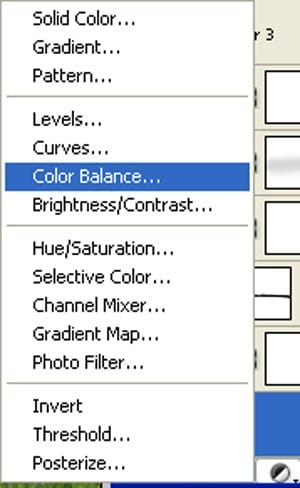
Now create new Color/Balance adjustment layer from the bottom of layers palette.
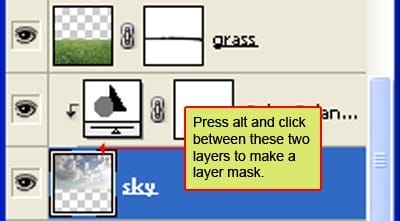
Press Alt+left click in between 2 layer’s (sky layer and Color/Balance) to make a mask.
When the Color Balance box opens, input the following:
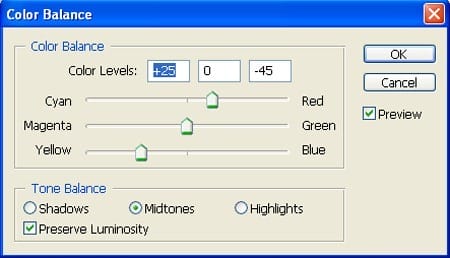
The result should be similar to this:
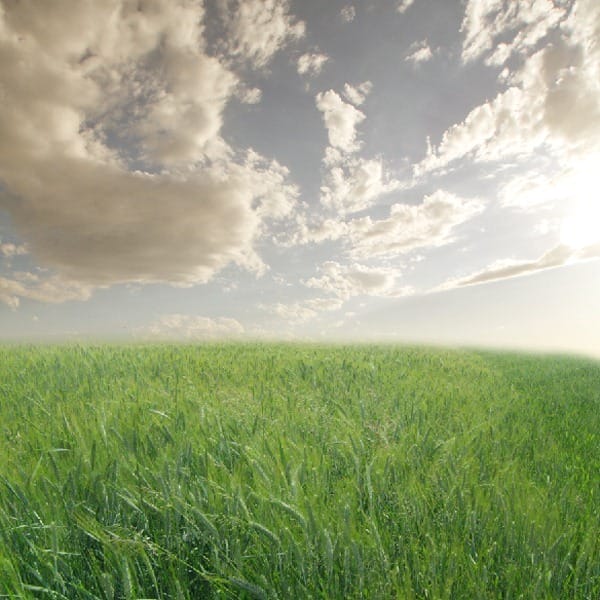
Step 8
Go back to “Ground” layer
Now create new Color Balance adjustment layer from the bottom of layers palette .Press Alt+left click in between 2 layer’s (ground layer and Color Balance) to make a mask.
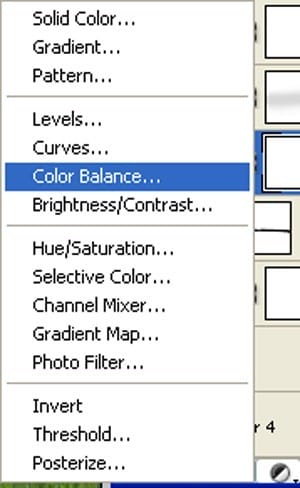
When the Color Balance box opens, input the following:
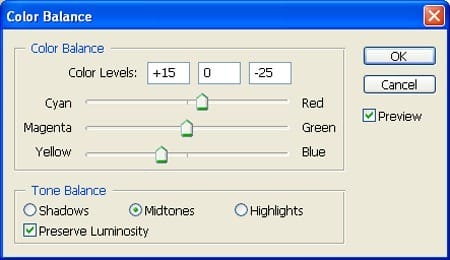
The result should be similar to this:
Step 9
Now create new Brightness/Contrast adjustment layer from the bottom of layers palette. Press Alt+left click in between 2 layer’s (Ground layer and Brightness/Contrast) to make a mask.
5 responses to “How to Create a Violin Player in a Grassy Landscape”
-

old but still good
-
Looks very interesting, and seems to be a comprehensive tutorial. Will definitely try out :)
-
Very interesting, easy and useful for everyone. Thanks for sharing.
-
linda imagem e com dicas espectaculares de aprendizagem…~
um muito obrigado por compartilhar conosco
-
so beautiful experience to create this amazing ambiance.
thank you for sharing with us


Leave a Reply