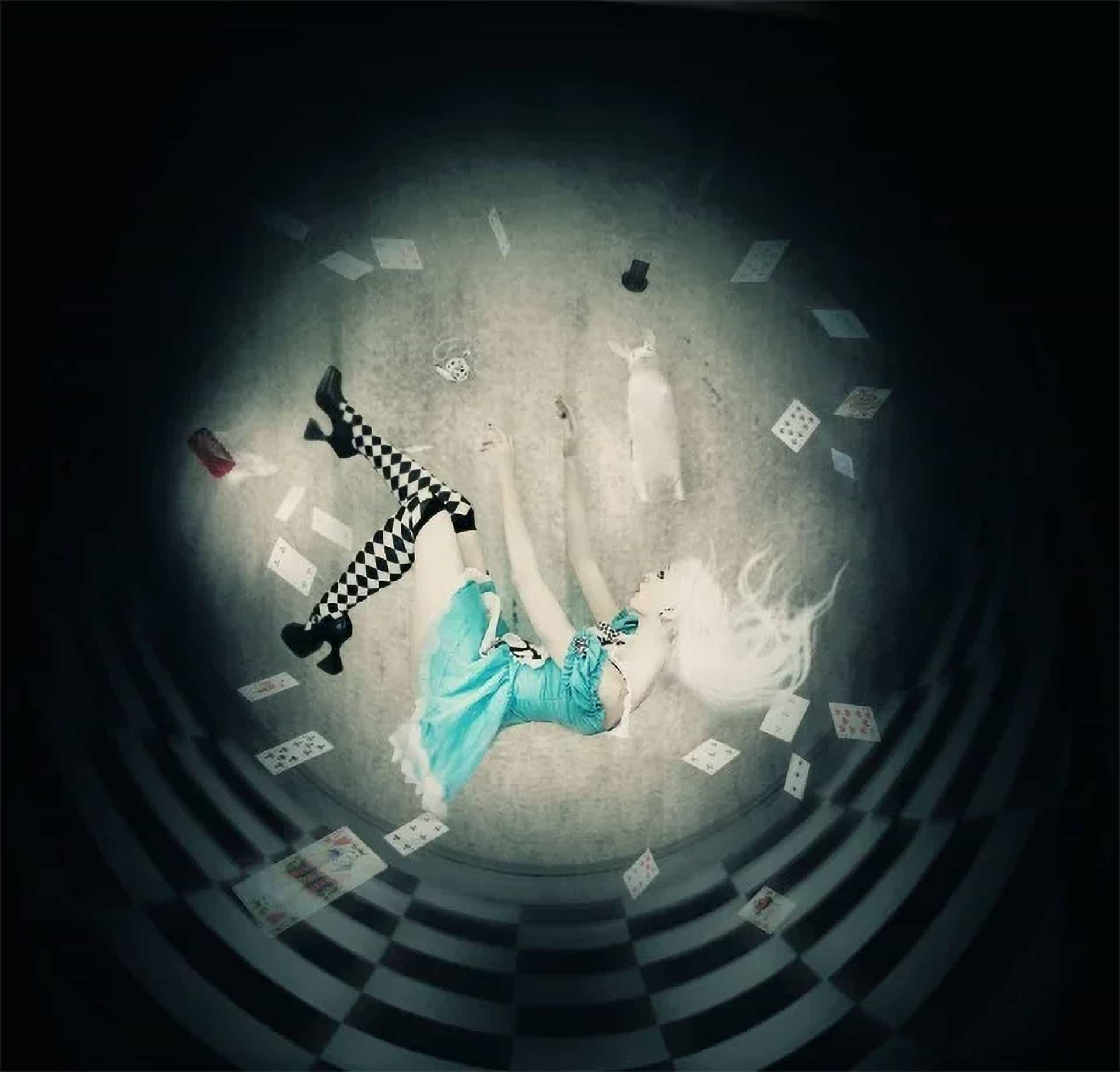
Preview of Final Results

Down the Rabbit Hole_byV


Download the PSD

DowntheRabbitHole_byV.zip | 13 MB
Download from Author
Download from Website


“Alice in Wonderland” Inspired Artwork Photoshop Tutorial


Resources


Helpful Shortcuts

  • During this tutorial you will be making a lot of layers. As a shortcut, use Cmd+Shift+N (MAC) or Ctrl+Shift+N(PC).
  • Add masks by clicking “Layers > Layer Mask > Reveal All.”
  • To raise and reduce your brush diameter when painting your masks, use the [ and ] keys.
  • Use B and V to switch rapidly between the Brush and Move/Transform Tools.

Step 1

Launch Photoshop and create a new document. for the purpose of practice, we are creating a web-ready image. Therefore, choose 72 “pixels/inch” and set the Width and Height to a wallpaper size such as 1680 x 1050.

alice1


Step 2

Choose the Bucket Tool and fill the background with black. Click on “File > Place” and browse to choose the Victorian background. Click the Warp button in the selection toolbar to enable Warp Mode.

alice2a


Step 3

Warping the background is the most difficult part of this process, and likely what you will spend the most time perfecting. Don’t worry if you don’t make it perfect now – you can continue to adjust it as you build the rest of the image, so it fits around the other elements you will be adding.

Begin warping the background into a circular shape starting with the top nodes. Pull them up and inward, and then do the same with the bottom corners.

alice2

Proceed to create a sort of person outline, which bends the background into a teardrop shape.

2

Imagine two circles in the center like the following example. Continue working with the nodes until the center lines are evenly spaced and bent into a circular shape, leaving an opening at the top. To create perspective towards the bottom and “front” of the image, click the bottom “fat” part of the background and drag it outwards. Try to keep both sides symmetrical by positioning your lines and nodes evenly.

alice2b


Step 4

Once you have warped your background to a point you are satisfied with for now, click on “File > Place” and choose the Alice model photo. Scale her down slightly if using my suggested document dimensions. To help create the idea of motion, drag upwards on the top node to enlongate the photo by about 70 pixels and position it so the model is above the curve line at the “back” of the room, about 250 pixels from the top of the document.

alice3


Step 5

Choose the Magic Wand Tool and set the tolerance to 15. Hold down the Shift key and left-click to select the areas around the model. Don’t worry if you get some of her hair, as you will be able to bring it back in the next step. Once you have most of the background selected, choose “Layer > Layer Mask > Hide Selection” from the Photoshop menu. This will add a selection mask to your model layer that will allow you to paint over parts of the photo with black or white to either show or hide portions of the image.

alice4


Step 6

Choose the Brush Tool and set the Opacity to 50%. Gently brush over the remaining visible pieces of background using black. Remember you can use the [ and ] keys to change your brush size on the fly. When working in tight spaces or along the model’s skin, you may find it more comfortable to use the Polygonal lasso tool to outline the area before brushing over to reduce the risk of mistakes. To bring back any part of the model you brushed over, change the foreground color to white.

5a

Here is how she should look when finished:

5b


Step 7

Create a new layer called “gradient.” Right-click the Bucket Tool in the left toolbar and choose the Gradient Tool. Set your foreground to black and ensure the “Foreground to Transparent” gradient is selected in the Gradient options bar, and click the “Radial Gradient” button and “Reverse” checkbox.

7gradopt


Step 8

Left-click the document just above the model’s belly and drag downwards to extend the gradient beyond the document’s bottom edge. Release to create the gradient.

alice7

Choose the Move Tool and drag the bottom of the gradient down a little to lighten up the floor. This is a good point to re-adjust your background if you need to. Here is how your image should look so far:

7b


Step 9

Select the gradient layer and click “Layer > Layer Mask > Reveal All.” Ensure the foreground is set to black and choose the Brush Tool. Set it to about 420 pixels at 40% opacity and click a few times over the model to brighten up the area around her.

alice8


Step 10

Right-click the model layer and choose “Duplicate Layer.” Turn off the original layer by clicking the little “eye” icon to the left of the layer name in the layer panel. Righ-click the copy layer and choose “Rasterize Layer.” It’s always a good idea to create duplicates of your layers before making a major change to it, in case you ever need to go back to the original layer state. Raserizing the layer will allow you to access the Adjustments options, which were previously unavailable.

alice9


Step 11

With the model copy layer selectd, click “Image > Adjustments > Curves.” Click the line and drag three nodes into position as shown here. Curve adjustments allow you to brighten parts of the model such as her skin and dress while maintaining a solid level of black and an even brightness in her hair. Curves avoid too much contrast and blown out highlights which can be a problem when using similar tools such as Contrast/Brightness or Level Adjustments.

alice10


Step 12

Alice’s hair is currently hanging straight down, which won’t work if we want her to appear to be falling. To fix this problem, you can warp her hair to bend upwards, and use some custom hair brushes to restore detail to the strands. Begin by using the Polygonal Lasso Tool to cut out her hair. Copy this new selection.

alice11

Create a new layer and hit Shift+Cmd+V (MAC) or Shift+Ctrl+V (PC) to paste the selection into the layer. Add a mask to remove the background. Choose the Move Tool and click the corner node of the hair selection. Click the “Warp” button in the top toolbar and begin dragging the nodes upwards to create a “U” shape.

alice12b


Step 13

Create a new layer called “hair.” Open the Brush panel and load the hair brush set by clicking on the Preset Manager button located at the bottom of the panel window. Set the foreground to white and select the hair strand brushes to paint in some detail over the flowing hair on the layer below. Use the Brush panel to rotate the brushes and set an appropriate size. Uncheck the “Spacing” box for a better preview.

Use a normal brush at 2px – 5px to brush in some highlights to reduce the harsh edges left by some of the hair strand brushes.

alice13


Step 14

Add a mask to your painted hair layer and use a soft brush at 50% opacity or lower to gently blend the edge of your hair into the crown of the model’s head. Clean up any other rough edges using the mask.

alice14