
![step-033[28]](https://cdn.photoshoptutorials.ws/images/stories/4f403d312465_1519/step-03328.jpg?strip=all&webp=82&avif=82&w=1920 "step-033[28]")
Step 34
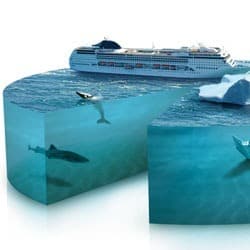
Go to Window > Paths or simply click the Paths tab to show the Paths panel. Now click the Load Path as Selection button to convert those paths into a selection marquee. Copy-paste the selected cruise into our working document.
![step-034[28]](https://cdn.photoshoptutorials.ws/images/stories/4f403d312465_1519/step-03428.jpg?strip=all&webp=82&avif=82&w=1920 "step-034[28]")
Step 35
Using free transform command, reduce the cruise’s size. Make sure you place this cruise layer on top of layer group ‘top’.
![step-035[28]](https://cdn.photoshoptutorials.ws/images/stories/4f403d312465_1519/step-03528.jpg?strip=all&webp=82&avif=82&w=1920 "step-035[28]")
Step 36
Go to Image > Adjustment > Color Balance or simply hit Ctrl+B to bring the Color Balance dialog. Adjust Color Levels value until the cruise color become more bluish, this will imitate the ambient color from the water texture, making the cruise color blend with the environment. Click OK to apply color balance command. Water reflect things, right? so we’ll need to create one for the ship, adding realism. First, you need to duplicate the cruise layer (Ctrl+J). Then drag down the cruise copy layer below the original one.
![step-036[28]](https://cdn.photoshoptutorials.ws/images/stories/4f403d312465_1519/step-03628.jpg?strip=all&webp=82&avif=82&w=1920 "step-036[28]")
Step 37
Go to Edit > Transform > Flip Vertical to flip the ‘cruise copy’ image. Do some distortion here by using the Edit > Transform > Distort menu, hit Enter when your done. Now add a layer mask in this layer because we’ll going to hide half of the ‘cruise copy’ image using layer mask.
![step-037[27]](https://cdn.photoshoptutorials.ws/images/stories/4f403d312465_1519/step-03727.jpg?strip=all&webp=82&avif=82&w=1920 "step-037[27]")
Step 38
Grab the Gradient tool, and draw linear gradient vertically from white to black (make sure the layer mask is active when you did this). There you go, looks like a reflection isn’t? but we’re not finished yet, some shadows is needed for adding realism and depth.
![step-038[27]](https://cdn.photoshoptutorials.ws/images/stories/4f403d312465_1519/step-03827.jpg?strip=all&webp=82&avif=82&w=1920 "step-038[27]")
Step 39
Still in the same layer, add Color Overlay layer style. Choose a dark blue color, and reduce the opacity to get the semi-transparent color effect.
![step-039[27]](https://cdn.photoshoptutorials.ws/images/stories/4f403d312465_1519/step-03927.jpg?strip=all&webp=82&avif=82&w=1920 "step-039[27]")
Step 40
We need some minor tweak for the ship’s reflection. Click back the layer mask of ‘cruise copy’ layer. Use soft round Brush tool to mask shadow’s front and back edge (marked with red circle in the image below). That’s better!
![step-040[27]](https://cdn.photoshoptutorials.ws/images/stories/4f403d312465_1519/step-04027.jpg?strip=all&webp=82&avif=82&w=1920 "step-040[27]")
Step 41
Open the first iceberg stock image. Since the color between iceberg and ocean are contrast enough, you can easily create a selection using Magnetic Lasso tool. Copy-paste the selected iceberg into our working document.
14 responses to ““Piece of the Arctic” Pie Chart Photo Manipulation”
-

awesome work…congrats
-
Learning so much with this tutorial. Thanks…
-
thanks, loved him!
-
hi,
i couldnt find 3d tool in photoshop cs6.. please help
-
Great Work… Thank you Dear For sharing us this tutorial. :)
-
It’s spelled arctic with a C. Get it right people.
-
nice work ty C:
-
A really big thanks for the tips
-
Was a nice tut until step10…
-
brilliant
-
A lot to learn.. great work dude..
-
excellent
-
Thank you so much for this, it was really helpful.
-
Wow Amazing….


Leave a Reply