
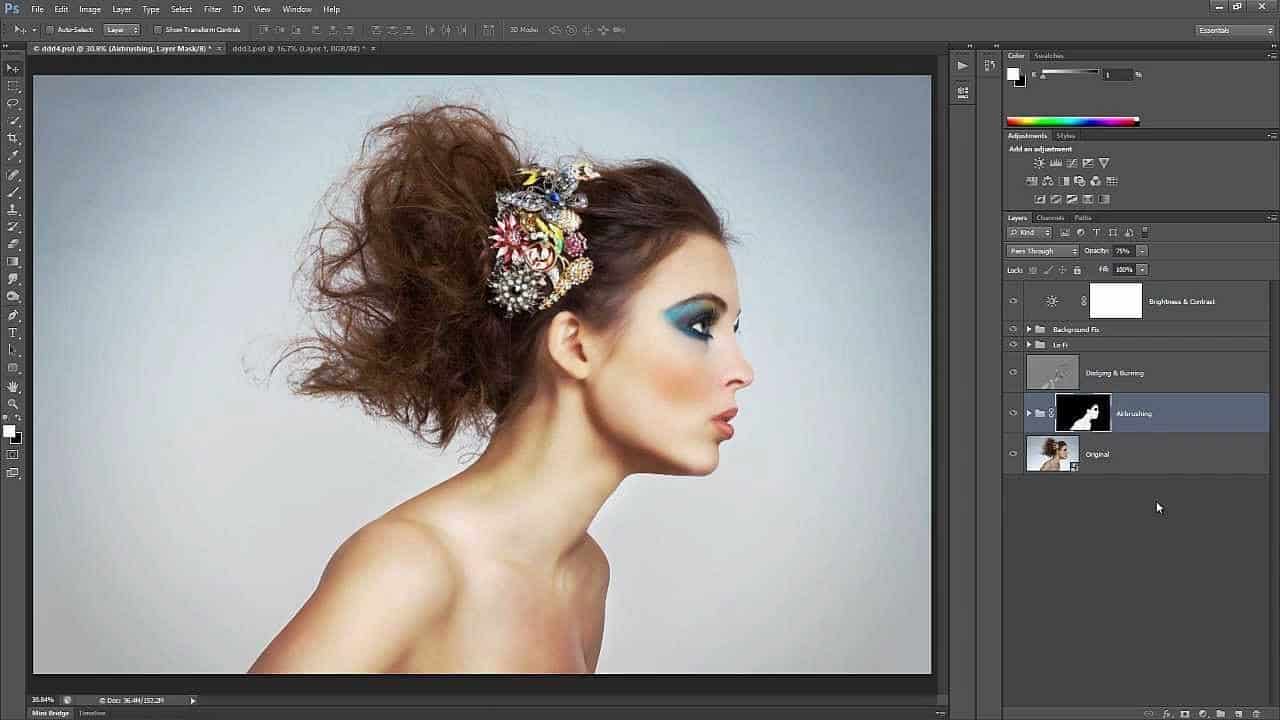

Learn how to retouch skin professionally in Photoshop without making it look fake or blurry. In this Photoshop tutorial, you will learn how to reduce wrinkles and blemishes, airbrush skin naturally, dodge and burn, and more using all non-destructive editing techniques. Once you learn this, you can make everything from natural skin improvements to glamorous airbrushed skin used in advertising. To follow this tutorial, you’ll need Photoshop CS2 or newer.
Video Tutorial
Final Results


Step 1
Open the image that you want to edit. The photo should be high-res with a lot of skin details. For educational purposes, this tutorial will be shown using a photo with more dramatic skin flaws. We like to thank DepositPhotos.com for providing the stock photos used in this tutorial.

Image Credits: Natural portrait of a senior | Stock Photo © Sebastian Wahsner
Step 2
To begin, we’re going to start with a subtle skin retouching method that uses the Yellow channel to reduce skin flaws. Go to . In the Channels panel, click on the Yellow channel. Copy this channel by pressing Ctrl/Cmd+A then Ctrl/Cmd+C.

Step 3
Undo the steps by pressing Ctrl+Shift+Z or Cmd+Option+Z on Macs until you’re back in RGB mode. Press Ctrl/Cmd+V to paste and the Yellow channel will appear as a new layer. Name this layer “Flaws”.

Step 4
Invert the layer by pressing Ctrl/Cmd+I then change the blending mode to Soft Light. Reduce the opacity until you get the results that you like. You can add a layer mask and erase the areas around the face if it is affecting the color/details of the surrounding areas. We don’t need to do this for our photo because the layer doesn’t affect the surrounding areas in any noticeable way.

Here’s the before and after of using the yellow channel to reduce skin flaws.


Step 5
Before we do any sort of airbrushing on the skin, we’re going to use the Spot Healing Brush to reduce wrinkles and blemishes. Select the Background layer then duplicate it by pressing Ctrl/Cmd+J. Move this layer to the top then rename it to “Wrinkles & Blemishes”.


