

If you have a nice photo of a model, but she or he wasn’t smiling and you want the photo to feature a smiling face, or vice versa, you can use Photoshop to slightly tweak the facial expressions. The key is to be subtle in your approach, unless you are creating a caricature or cartoon. With the Liquify tool, we can create some subtle changes to model photos that can affect the overall mood of the face and therefore affect the mood of the photo.
Step 1
Open up an image of a face. You can save this JPEG image as well to use.

© ISTOCKPHOTO / JOEY NELSON
Step 2
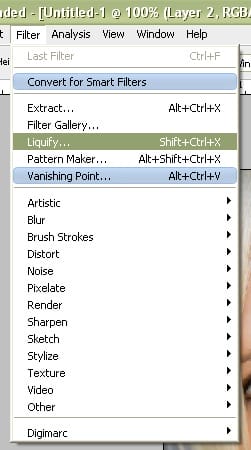
Go to Filter>Liquify.
Step 3
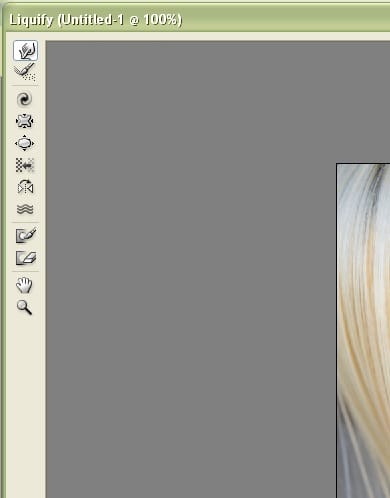
Click the Forward Warp tool, which is the top tool on the right-hand side of the liquefy screen. This tool lets us move pixels slightly in order to produce certain effects. Notice at the bottom of the screen, the Hand tool is available for moving around the view of the image, and the Zoom tool is available to zoom in to the image.
Step 4
Notice on the right-hand side of the Liquify screen, we have some more options. After selecting the Forward Ward tool, there are some brush settings there we can change. I have mine set to the default, but it’s a little bit too big of a brush.

Step 5
We could change the size there, but let’s use a shortcut. The brush is too big as we see here. Just press the left bracket [ to make the brush smaller. Press it a few times. Press the right bracket ] to make the brush size larger.

Step 6
Press the left bracket [ until the brush size is set to about 30. Position it at the corner of the model’s lips, and we’re going to click-and-drag it gently upward.

Step 7
By clicking-and-dragging then letting of at the corner of the lips, we’ve added a slight smirk to the model.

Step 8
If you want to zoom in, try the Zoom tool or use the shortcut Cmd and the + or – sign (PC: Ctrl and the + or – sign). Press the space bar to use the Hand tool to move around the image as well. Now let’s change the nose slightly. The nose looks perfect to me, but let’s change it for learning sake. Choose the ASDASDSA tool from the left-hand side of the Liquify screen.
7 responses to “Subtle Changes with the Liquify Tool”
-

coAc AND 1881=8182
-
coAc)(,(‘”).,.
-
HOW THE F*CK DO YOU DOWNLOAD THIS
-
right click save as
-
-
Nice
-
Thanks for your post.
But its not helpful for a new editor.-
Good
-


Leave a Reply