
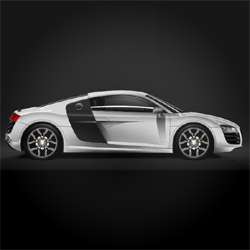
Learn how to create this beautiful Audi R8 drawing in Photoshop. You’ll learn how to outline, color, shade, and create textures to create this car.
Preview of Final Results

How to Render a Professional Audi R8 Photoshop Tutorial
This tutorial describes how to render a car from a side view. This particular vehicle is an Audi R8. The entire car was created in Photoshop apart from the wheels which can be found here. You can find a variety of other wheel designs there too, or alternatively you can download some images of cars and copy their wheels.
This rendering took me about two and a half hours to create from scratch. If you are new to Photoshop then don’t worry if it takes you considerably longer and don’t be afraid to experiment, this is only a guide to get you started. Also, its a lot easier to just copy a car so if you’re doing your own design you will have to decide where the highlights are and what the surfaces are doing and what materials you are dealing with. Anyway enough waffle, lets start…
Step 1 – Lines
Use the pen tool to draw your design. Consider where the highlights and lowlights will fall and draw those in too. This process should take about 45 minutes. This will vary depending on the design and your knowledge of Photoshop.
Create a new layer and name it Lines. Select the pen tool and make sure its round 1pixel and the foreground colour is black. Select the arrow and select all the paths. Right click and select stroke. (Make sure pressure is un-ticked)


Step 2 – Base Colour
With the magic wand tool select all the areas within the outer most line.
Create a new layer and name is Base.
Fill the area in using the paint bucket tool.

Step 3 – Layout
Your layout should look like this. I’ve changed the colour of the Lines layer (Right click>Layer Properties) so that it stands out as I will be referring to it quite often.

Step 4 – Wheels
You can download these wheels from my site here and position them. Re-size using the free transform tool. (Edit>Free Transform)

Step 5 – Dark Areas/Shadows
Fill in the dark areas inside the wheel arches, underneath the car and inside.

Step 6 – Background Gradient
Use the gradient tool to create a dark to light gradient from top to bottom.
2 responses to “How to Render a Professional Audi R8 in Photoshop”
-

how to select all the paths
-
ctrl+shift+a
-

Leave a Reply