
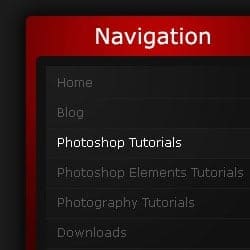
Create this beautiful navigation module with Photoshop. This Photoshop layout tutorial will show how simple shapes and gradients can create elegant designs.
Preview of Final Results
![step9[4]](https://cdn.photoshoptutorials.ws/images/stories/ModernisticNavigationModule_18DD/step94.jpg?strip=all&webp=82&avif=82&w=1920)
Modernistic Navigation Module Photoshop Tutorial
Step 1
Firstly create a new document (File > New) 540 by 440 pixels. Fill the background with the colour #1b1b1b by going Edit > Fill.
![step1[7]](https://cdn.photoshoptutorials.ws/images/stories/ModernisticNavigationModule_18DD/step17.jpg?strip=all&webp=82&avif=82&w=1920)
Step 2
Secondly we are going to be creating the background of the navigation box. Create a new layer, you can do this by going Layer > New > Layer or using the short cut Ctrl + Shift + Alt + N. Select the rounded rectangle tool and set the radius to 5 pixels. Make a selection of 250 by 300 pixels.
![step2a[4]](https://cdn.photoshoptutorials.ws/images/stories/ModernisticNavigationModule_18DD/step2a4.jpg?strip=all&webp=82&avif=82&w=1920)
We are now goingt to be filling this selection with a red gradient. Select the gradient tool and set it to radial. Fill the selection with a gradient from the top center (#bc0303) to the bottom center (#3f0000).
![step2b[4]](https://cdn.photoshoptutorials.ws/images/stories/ModernisticNavigationModule_18DD/step2b4.jpg?strip=all&webp=82&avif=82&w=1920)
Step 3
Thirdly, we are going to be adding an outer glow to our navigation background by going Layer > Layer Styles > Outer Glow and enter the settings below.
![step3a[4]](https://cdn.photoshoptutorials.ws/images/stories/ModernisticNavigationModule_18DD/step3a4.jpg?strip=all&webp=82&avif=82&w=1920)
Now it should be looking like this.
![step3b[4]](https://cdn.photoshoptutorials.ws/images/stories/ModernisticNavigationModule_18DD/step3b4.jpg?strip=all&webp=82&avif=82&w=1920)
Step 4
Select the text tool and add in some text for the title of the navigation box. The font I have used is Verdana, Regular, 22pt, Strong, #ffffff.
![step4[4]](https://cdn.photoshoptutorials.ws/images/stories/ModernisticNavigationModule_18DD/step44.jpg?strip=all&webp=82&avif=82&w=1920)
Step 5
Create a new layer and using the rounded rectangle tool again make a selection of 230 by 250 pixels at the bottom of the navigation background (with 10 pixel spacing on the sides and bottom).
![step5a[4]](https://cdn.photoshoptutorials.ws/images/stories/ModernisticNavigationModule_18DD/step5a4.jpg?strip=all&webp=82&avif=82&w=1920)
Fill this selection with a dark grey colour (#111111).
![step5b[4]](https://cdn.photoshoptutorials.ws/images/stories/ModernisticNavigationModule_18DD/step5b4.jpg?strip=all&webp=82&avif=82&w=1920)
Step 6
We are now going to be adding a shine effect to the new layer. So on a new layer (keeping the selection that you had before) go Select > Modify > Contract by 10 pixels.
![step6a[4]](https://cdn.photoshoptutorials.ws/images/stories/ModernisticNavigationModule_18DD/step6a4.jpg?strip=all&webp=82&avif=82&w=1920)
Fill the selection with a radial gradient from the top left (#ffffff) to the bottom right (transparent) using the gradient tool.
![step6b[4]](https://cdn.photoshoptutorials.ws/images/stories/ModernisticNavigationModule_18DD/step6b4.jpg?strip=all&webp=82&avif=82&w=1920)
Lower the opacity of the layer to 5%.
![step6c[4]](https://cdn.photoshoptutorials.ws/images/stories/ModernisticNavigationModule_18DD/step6c4.jpg?strip=all&webp=82&avif=82&w=1920)
Step 7
Now for the text links, using the text tool add in some text to act as links. The font that I have used for this is Verdana, Regular, 12pt, None, #5a5a5a (#ffffff for the hover effect). Set the line height to 30 pt.
![step7[4]](https://cdn.photoshoptutorials.ws/images/stories/ModernisticNavigationModule_18DD/step74.jpg?strip=all&webp=82&avif=82&w=1920)
Step 8
Next up is adding in dividers to go between each text link. Make selections of 210 by 1 pixel using the rectangular marquee tool between each line and fill with the colour #1e1e1e.
2 responses to “Modernistic Navigation Module”
-

Nice and lovely menu tutorial.
-
Love Suger
-


Leave a Reply