
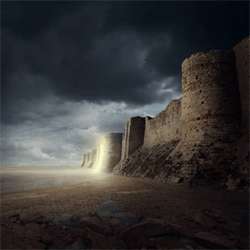

Now, the result of that change blending mode would be like this:

Step 3: Create the Ground
In this step, we will be creating the ground to which the castle is built upon. First, let’s open the stock image: “into the desert” by night fate stock. Activate the Rectangular Marquee Tool (M) and create a selection area over the ground shown on the image below:

Next, activate the Move tool (V) and drag that to our canvas. Put it above the “sky 1” and “sky 2” layers. Position it as shown below:

Rename this layer now to “ground 1”. Next, we will need to resize this. Activate the Transform tool (Ctrl/Cmd + T) and resize it as shown below:

The result of that should be similar to this:

For this ground to have the same lighting as the sky, we’d need to reduce its Brightness/Contrast. To do that, make sure that “ground 1” is selected and then go to Image > Adjustments > Brightness/Contrast and input the following:
- Brightness: -70
- Contrast: 0
- Use Legacy: Unchecked

The result should be similar to this:

Next, we will need to darken some parts of this ground before we put the castle walls on top of it to make things easier.
To do that, make sure that the “ground 1” layer is selected and then create a new layer (Ctrl/Cmd + Shift + N). This process makes sure that the new layer will be created above the active layer. Now when then new layer box is open, input “darken” on the name box. See image below:

Next, right click on the “darken” layer and click on “Create Clipping Mask” so that the paint we will be applying will only be applied to the “ground 1” layer.

Next, activate the Brush tool (B) but before we start, make sure that the active Brushes are the default brushes. The default Photoshop brushes are shown on the image below, if that’s not what you see, then follow the instructions below:

Right click the canvas while a layer is selected and while the Brush tool (B) is activated and then click on the button highlighted below:

Then click on “Reset Brushes” from the contextual menu.

Now, that that is done input the following settings for our Brush tool (B):
- Brush size: 1100px
- Hardness: 0%
- Opacity: 15%
- Flow: 100%
- #: 000000

Take note that the #: 000000 is the brush’s color. To change to that, simply do the following:
One response to “Create a Gigantic Fortress with a Mysterious Glow in Photoshop”
-

very nice tutorial, explained very well! thanks a alot :)

Leave a Reply