
In tutorial we will transform some regular pictures into cool 3D photos and we will integrate them in a veridical scene. If you followed some of my previous tutorials you know that I am a big fan of channel masking techniques so we will use them in this tutorial too.
Preview of Final Results
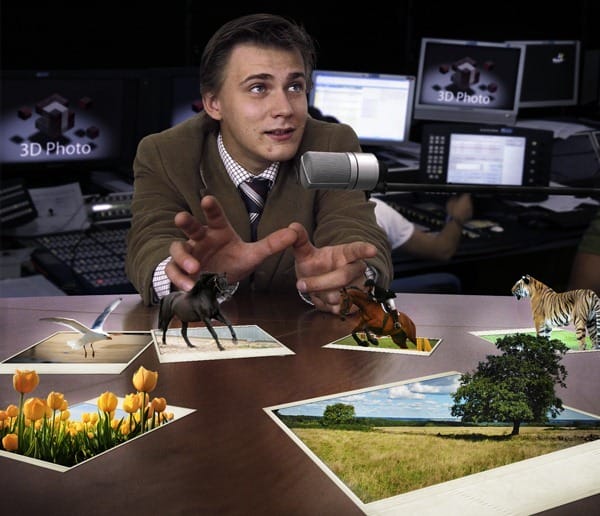
Popup Photo Scene Photoshop Tutorial
Resources
- Office Poznan
- Sky Sport24 PCR
- Cube
- Microphone
- Photo Frame 3
- Show Jumping 1
- Exotic Animal
- Flying Horses 2
- Segals
- Tulips
- Open Landscape 2
Step 1
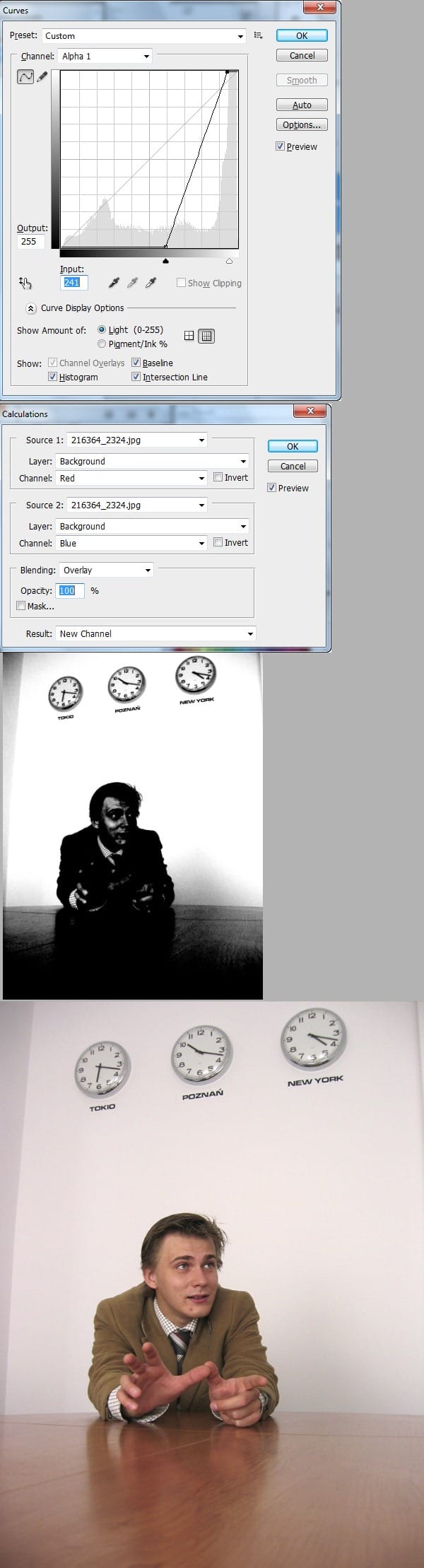
Open file “Office Poznan” in Photoshop. We will remove the background using some channel masking techniques. Choose Image > Calculations > and blend red and blue channel using overlay mode. Now we will raise the contrast between our black character and white background by using a curves adjustment. Choose Image > Adjustments > Curves and use the setting shown below.
Step 2
Choose a soft brush and change it’s blend mode to overlay. Now select white as foreground color and paint with white in the areas shown below. Select the inside of our character by using the Pen tool (P) or the Lasso tool and fill the selection with black. Make another selection like shown below then press Ctrl+Shift+I to invert selection and fill it with white. Now press Ctr+I to invert the selection. We will use this alpha channel to select our character.

Step 3
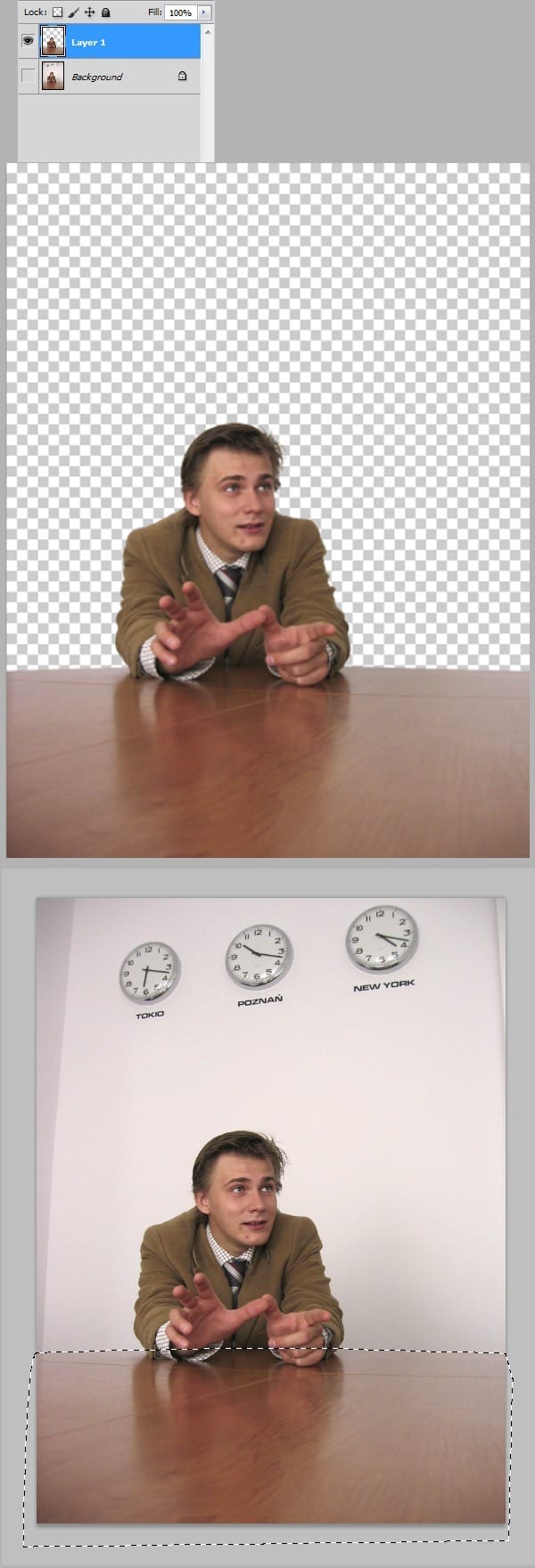
Use the Pen tool(P) to select the table then press Ctrl+Enter to transform path into selection. Now hold Ctrl+Shift and click on the alpha channel to add to selection. Press Ctrl+J to move the selection on a new layer and turn off the visibility of the “Background” layer.
Step 4
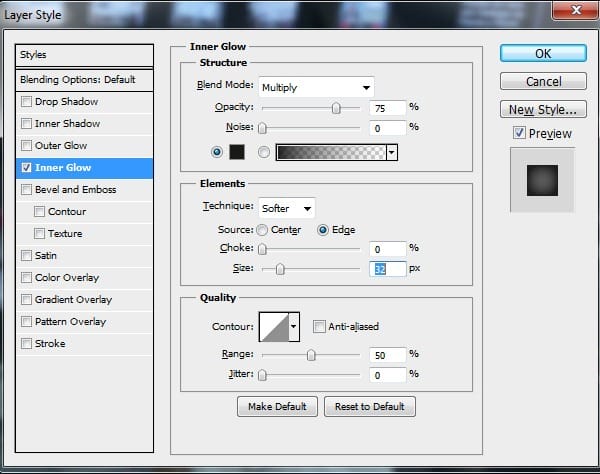
Open file “Cube”. Type “3D Photo” using a font of your choice and white color. Choose Layer > Flatten Image then double click the layer to enter advanced blending options and use the settings below. Press Ctrl+A to select all and Ctrl+C to copy.
Step 5
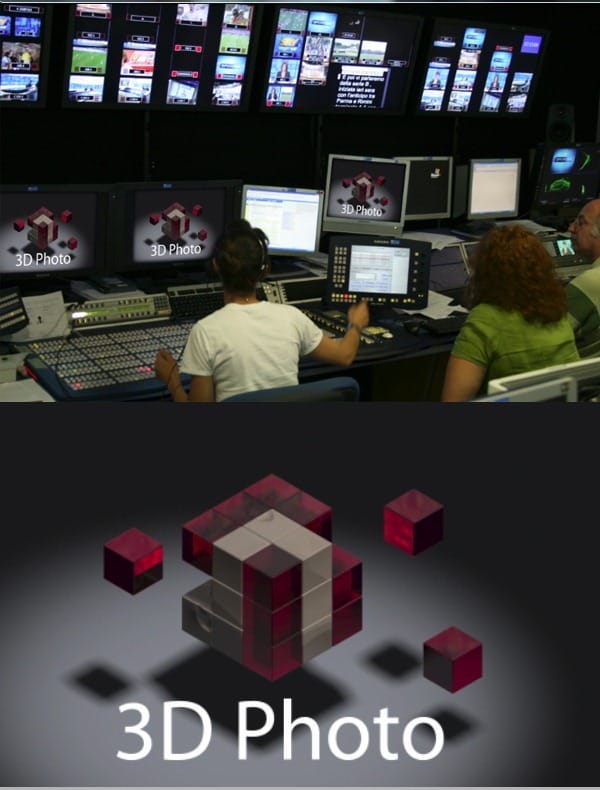
Open file “SkySport24 PCR”. Press Ctrl+V three times to paste three copies of “3d Photo” layer. Transform each layer and place it on a monitor like shown below. Use a layer mask to mask out the girl’s head. Choose Layer > Flatten Image, press Ctrl+A to select all and Ctrl+C to copy.
Step 6
Go back to “Office Poznan” file and press Ctrl+V to paste. Name this layer “Studio” and move it below our office layer. Free transform it until it looks like shown below. Name the character layer “Office”.
One response to “Create a Scene with Popup Photos in Photoshop”
-

Yeah Poznań blisko mam do niego


Leave a Reply