
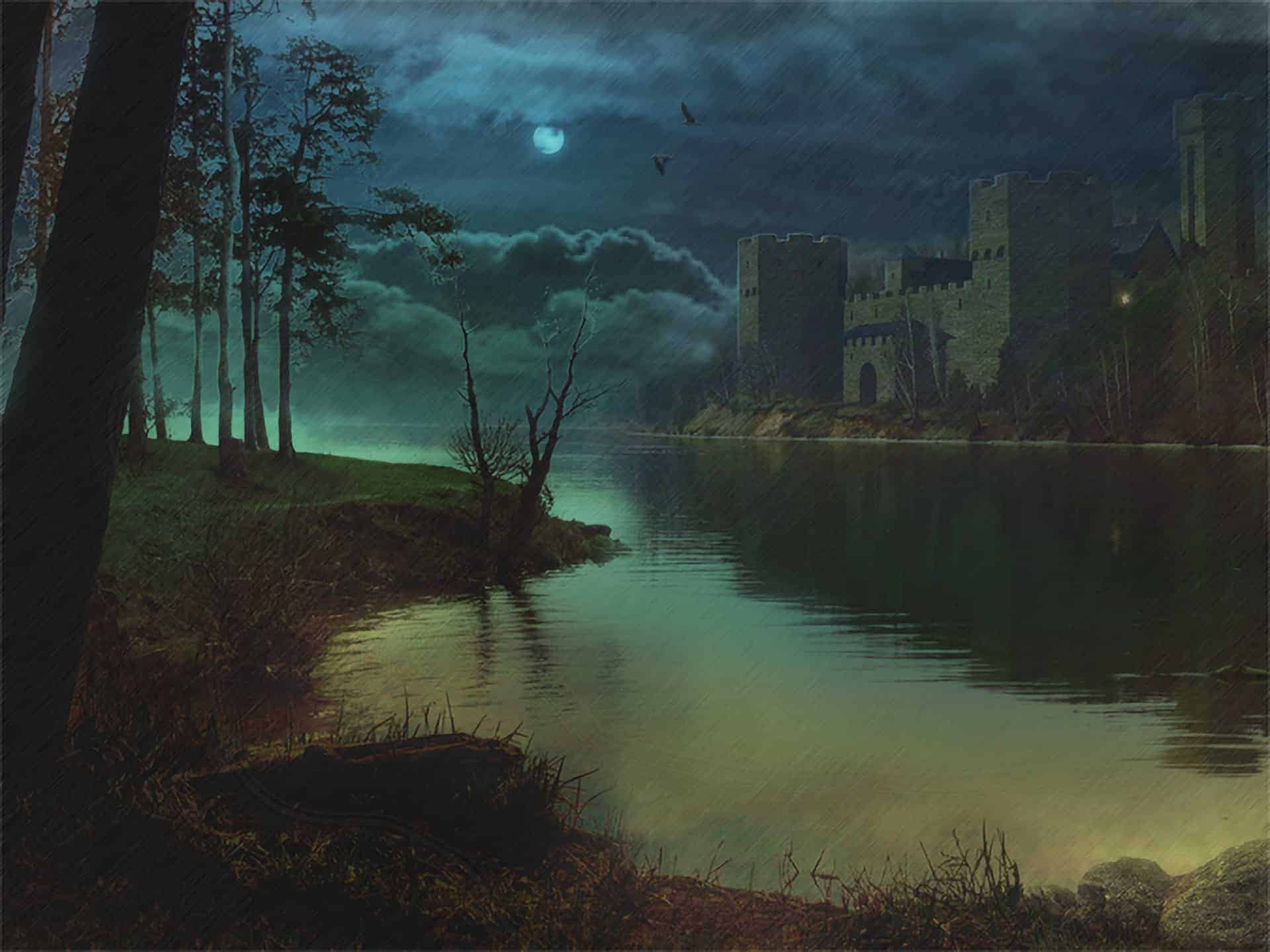
Photoshop has been one of the best tools for matte paintings and photo manipulations. This tutorial will show you how I created this dramatic lake scene and techniques you can use to create your own.
Preview of Final Results

Tutorial Resources
- Lake View– deviantart
- Moon image– deviantart
- Sky image– deviantart
- White Stones– deviantart
- Flying Birds– deviantart
Step 1
Create a new 8×6 inch document at 300 DPI (File > New). Below is an image of what we’ll be making.

I have planned out what I am going to create on this image. Before creating any Matte Painting “Planning” is the core phase which you have to execute properly. If you’re not planned well, then Matte Painting is a thing which will urge you to bring more and more effects, and finally, you will get stuck only in effects, no proper output will come. So, Planning is most important!

Now we are moving to work actually on the image. First, we will start from sky portion. In an original image, sky is looking natural so to give it dramatic look then you have to replace sky with another image. For this purpose, I have selected following sky image and have placed it properly to occupy complete sky portion:

Step 2
Now to replace original sky, use the Magic Wand Tool and then select only sky portion properly especially spaces between trees.

Step 3
And Delete that portion by pressing “Delete” key after that put the dramatic sky layer behind the main layer and see the output.

Some Correction:If you see in an output, you will find some parts between trees are remaining deselected so to replace it with background, follow this trick.

Step 4
First select only defected area by using Polygonal Lasso. As I have shown in an image:

Step 5
Then in Select menu -> choose Color Range tool. “Color Range”is a tool which selects specified color range in an existing selection.
So to replace faulty portion with background image then in Color Range tool first make Selection Preview: Noneand after that select eyedropper and pick faulty color range only. For reference follow the image below:

Step 6
Finally click on Ok button, you will find a selected portion of that defective part. Just Delete (delete two times) that portion, it will automatically match with background sky image.
46 responses to “How to Create a Rainy Lake Scene in Photoshop”
-

Sazid এরকম পারবি এডিট
-
emni download dia layer korlei tw hy
-
তুই তাইলে ডাউনলোড কর
আমি তুকে পিক দিবো কিছু
-
-
I think stuff about tips are fab
-
I just found this in my email and took a good look at it on the website. Is this “awesome”?
No, it is NOT. Rather, it is error-filled.
1. Lower right-hand corner. That’s the reflection of the light source, PROBABLY the Sun. Oh, but you have another light source in the top-center called the moon.
2. That light reflection off of the water IN NO WAY resembles the dark, forbidding rainy skies above. OOPS!
3. The reflection of the castle off the water is reasonable. But, where is the reflection of the two dark birds well above the castle, which would clearly be in the bright reflected skies above the castle?
There’s a really CRAP sunset picture making the rounds, where the moon has replaced the sun, and it’s been passed around in different hues, and it only has a very serious problem, which is that the clouds are passing behind the moon. In other words, our planet will be destroyed soon because the moon is in our atmosphere.
But a ZILLION LOONS out there say “awesome!” And this is as bad as that.
-
Nice one
-
Buen tutorial, muchas gracias. Pero el archivo PSD en zip, esta dañado y no se abre.
Saludos -
Great tutorial, but there are no files in the PSD file to download; it’s an empty file of 0 bytes.
-
Kine Melien Haugsrud test dette ??
-
absolutely could not agree more
-
-
Awesome!
-
The Lake View zipped file is empty.
-
I can’t even see the rain =/
-
wow Thank you for this great tutorial. Gave me lots of ideas and direction…..great job
-
amazing!! great to see the amazing work of great experienced art directors!!this information most important for me.
-
Please fix the download link
-
Step 24 is so amazing! thank you for sharing! <3
-
great tutorial.i learnt a lot…but being a novice it took me some time to locate all the commands since the tutorial was not very clear.but i got an amazing output.thanks again author :-)
-
como sempre ….dos melhores a ensinar e a progredir com o photoshop ,,, meus parabéns
-
To the people saying this is a bad tutorial, you must be noobs.
I don’t read most of the instructions, I go on by looking at how this is being created and do it my way.
You can do one thing in may forms on photoshop. -
Its very amazing steps to create lake view by using photoshop.I am wondered to see this post.Everyone should read this specially designer to get inspirations.thanks
-
Epic fail?? I don’t think so. Great ideas, apply them to your work however you see fit. I thank the person that took time to lay this out! Time out of their day, without being paid a dime. That’s not a fail at all. Thanks for sharing!
-
Something get wrong at step 7/8 with the gaussian blur, my images whole image is blurred and not only the trees etc.
However it´s a good tut -
kull stuff
-
this is cool…kudos..kudos again
-
can we add rain dropping effect into the lake, i think it will look more realistic can you please tall me how can we add that effect ?
-
This Is A Very Good Tutorial. But The Final Image Doesn’t Look Same As The First One On The Top. I can’t say Much Cause Am also New To This Software. Anyways G8 Job
-
I think this is awesome. Thanks.
-
OMG now this is what I call wicked talent.. I’m just speechless on how you’ve put everything together in such a beautiful harmony. splendid
-
This Fails so bad I am not even kidding ;)
-
if you don’t like this tutorial so what make your own one
we’re humans we make mistakes -
Good job man, we are waiting the best from you.
-
wow, very artistic
-
I like this kind of photo manips….very nice imaging. With more efforts to show the effects of the raindrops on the water surface, this work would be perfect.
-
My “Hue & Sat” levels only go to +180…..perhaps I’m missing something?
-
Do you have “Colorize” selected?
-
-
I like these tutorials, however I often get stuck and there seems to be no recourse to get clarification. For example on steps 5 and 6 I have a bit of a problem duplicating your steps. I follow your steps to the letter but clearly am doing something wrong and not getting the correct result….or anything resembling it. I’m using CS4 extended. Thanks
-
this might be really late but what did you do to get around that step? I’m having issues.
-
-
raaly i like this tutorial
-
It really befuddles me why people post such negative comments. These people that create these tutorials are taking the time out of their lives to assist us novices, not hold us by the hand. I think he did a very good job.
-
Wow, this is such a fail… by the first two commentators! Do you SEE any other reflection than the castle’s? No. You might make the lake darker, but the texture of the sky is not seen, so there is no reflection. And where the moon’s reflection lands wouldn’t be in the view of the lake. Also, can you make something better than this, without tutorials? No, that’s why you’re here. You can always make changes yourself if you don’t like, idiots.
-
you’re an idiot commentator!
-
-
hey, you know what, why don’t you show us your own works and/or tutorials? if you see an high level of fail here, I’m pretty curious to look at your astonishing works
-
it’s EPIC FAIL because the sky and the moon is not reflected in the water! :(
-
hahaha…level of fail is too high…how come raindrops doesnt affect the lake water surface?
-
Because its photoshop not reality!
-


Leave a Reply