
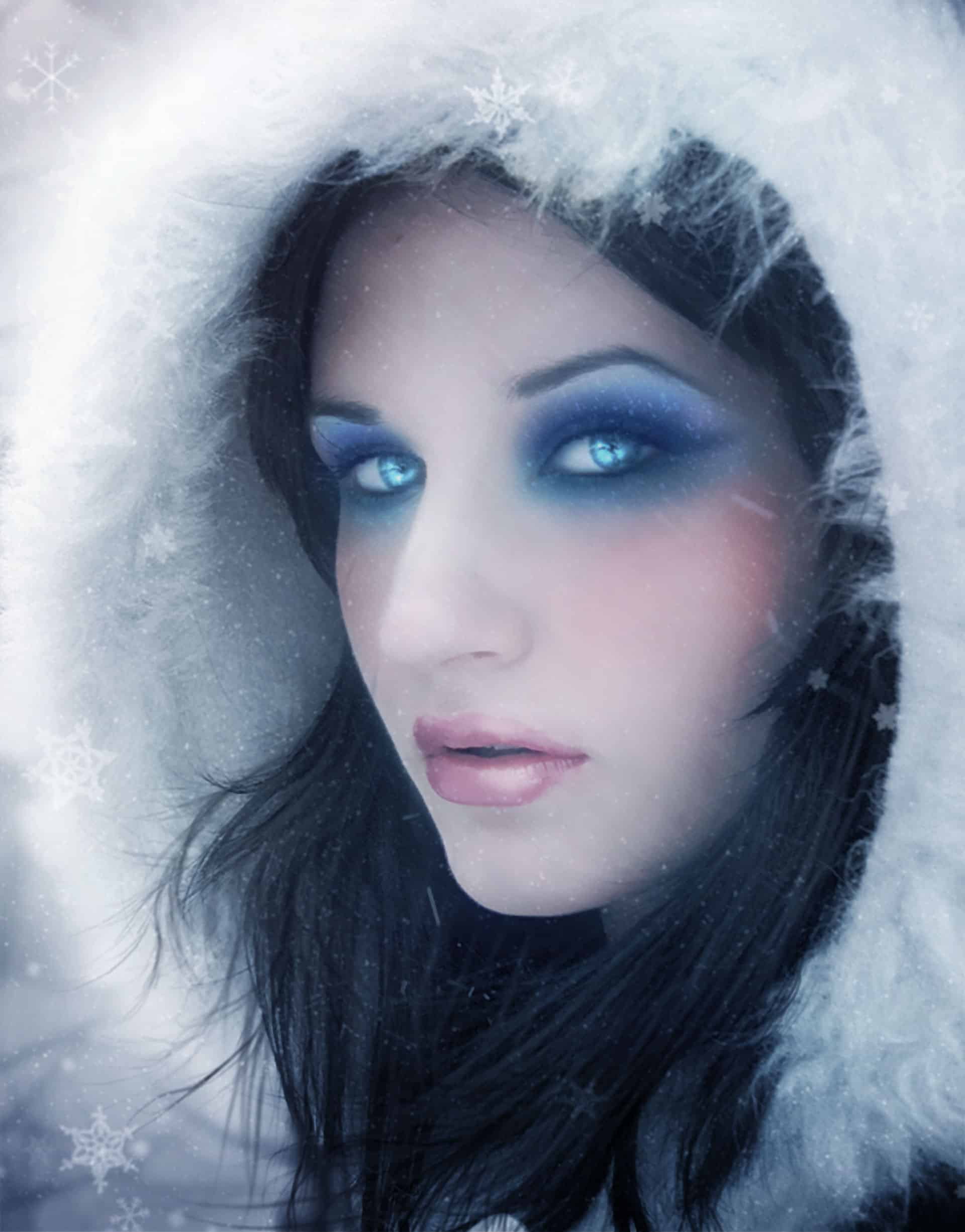
Learn how to apply makeup and add winter effects to a photo. This tutorial will show you how you can turn a regular photo into artistic photo manipulation.
Preview of Final Results
Tutorial Resources
- Model– mybluelight-stock
- Snow Brushes– redheadstock
- Hair– ALiceFaux
- Glitter– reno-fan-girl
Step 1
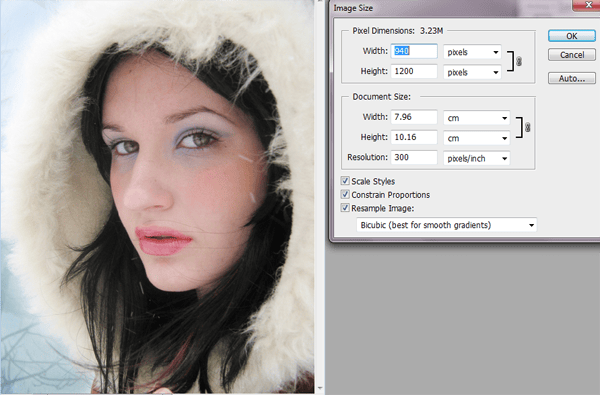
Open a new file, in this case, I used 940x 1200 pixels, since the image is just a portrait, that resolution is great.
Step 2
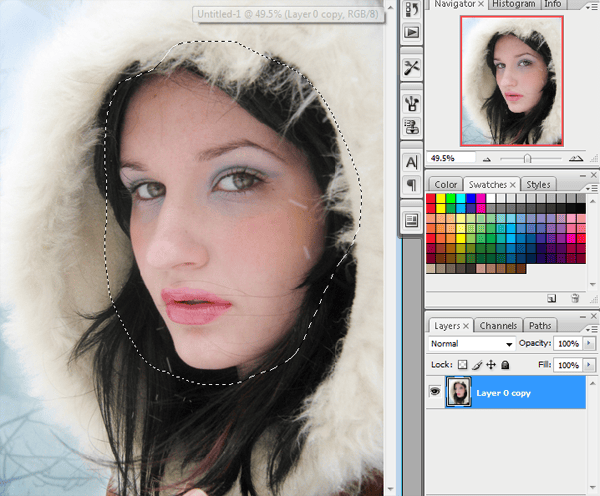
Let’s select the model’s skin with the lasso tool. Don’t worry about being perfect cause then you can use the eraser in the edges of the image.
Step 3
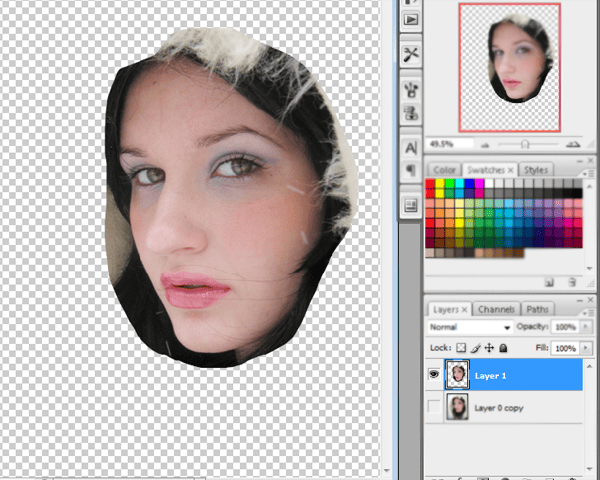
After the selection is made you have to press CTRL + J to duplicate the skin. So then you are gonna have a new layer like this:
Step 4
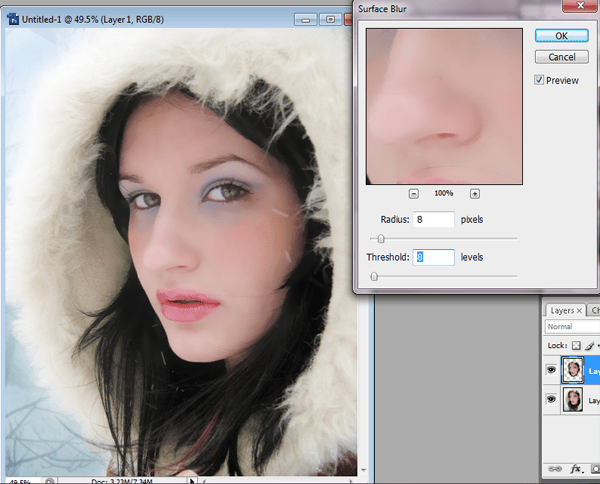
Then you have to apply a surface blur filter, to make the skin softer. For this you have to go to Filter -> Blur -> surface blur-> and then add 8 for radius and for threshold.
Step 5
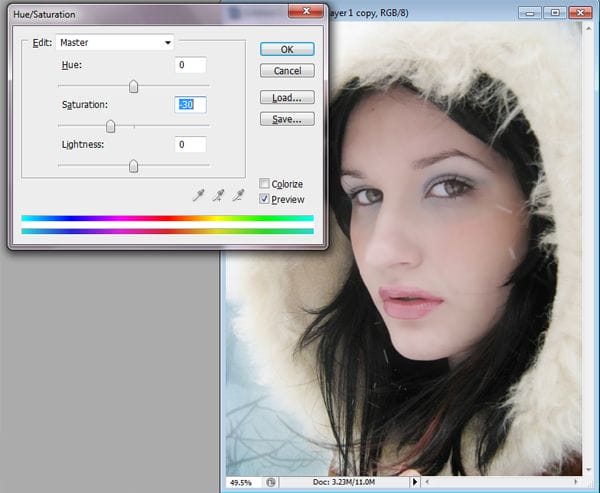
Then desatured the skin’s layer a little bit like -30%. Press CTRL + U to see the menu.
Step 6
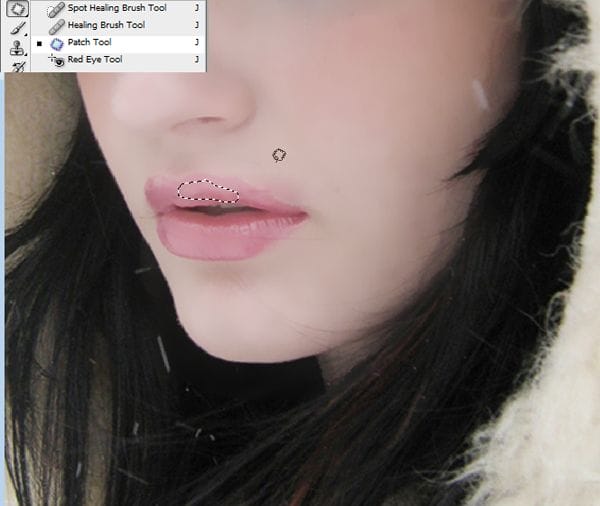
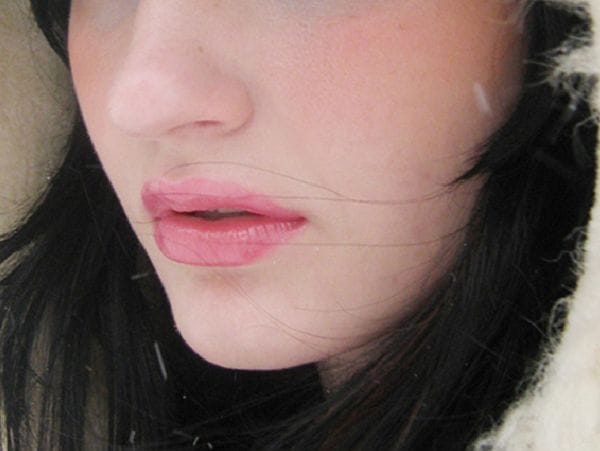
Use the patch tool to erase the hair that is on the model’s lips.
Step 7
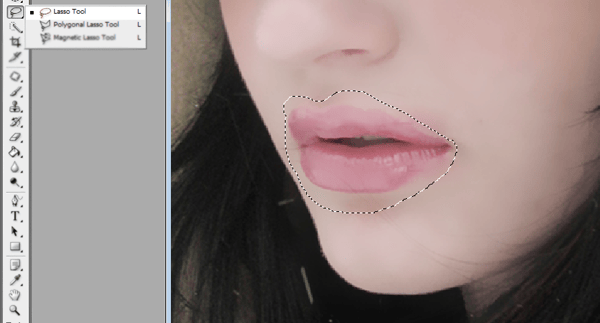
After removing all those imperfections, use the lasso tool to select the model’s lips, and duplicate the layer pressing CTRL + J. Remember that it doesn’t matter if it not perfect you can always used the eraser close to the edges.
Step 8
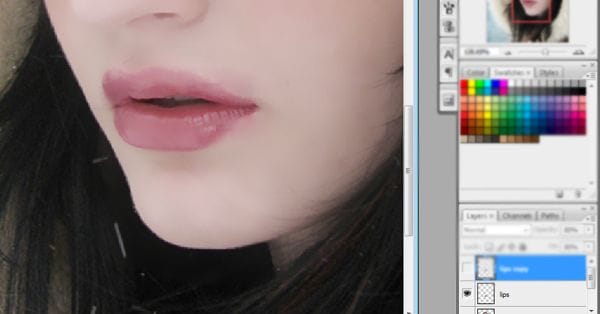
In the layer you duplicate apply multiply with 50% of opacity and 80% of fill, to make the lips darker.
Step 9
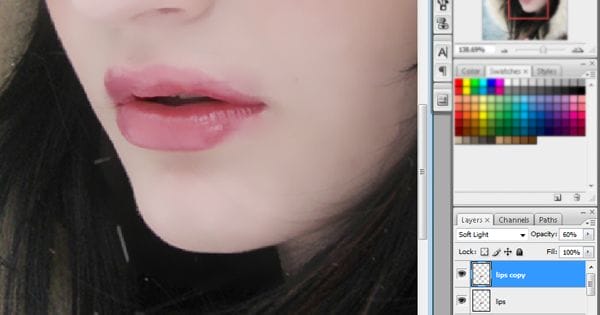
Press Ctrl + j to duplicate the lip’s layer once again. In this case, use the layer mode in soft light at 60% of opacity. that will make the lips look shiny.
Step 10
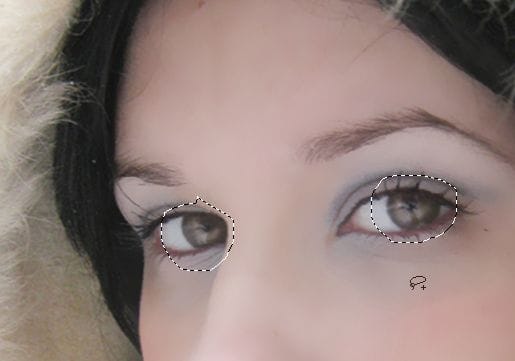
Now we are going to work in the eyes. Go to the layer of the model’s skin and select the eyes with the lasso tool then duplicate the layer CTRL + J.
Step 11
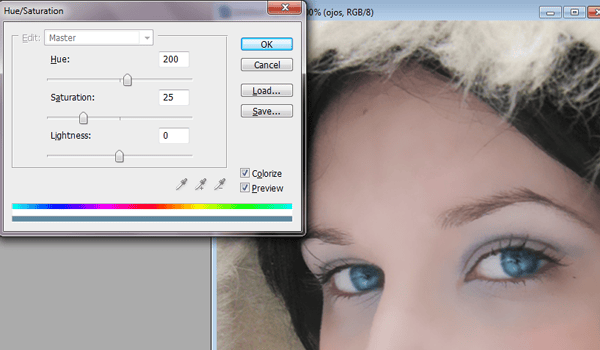
Press Ctrl+u to change the color of the eyes. I used hue at 200 to make the eyes blue.
Step 12
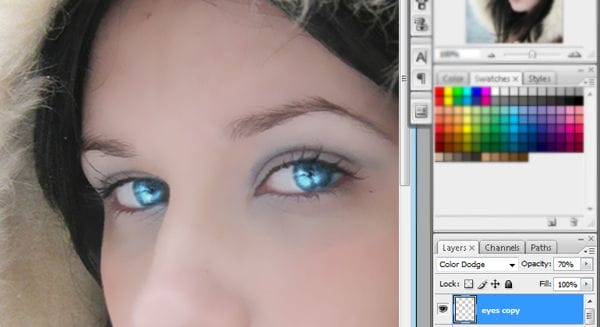
Duplicate the eye’s layer and use the layer in color dodge option at 70% opacity to achieve this look.
Step 13
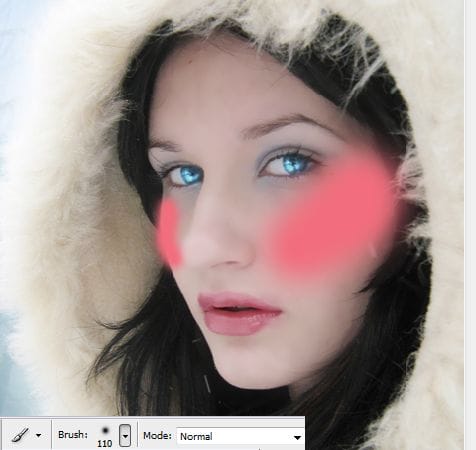
To do the blush I created a new layer and paint the model’s cheeks with a soft brush, using a pink tone.
Step 14
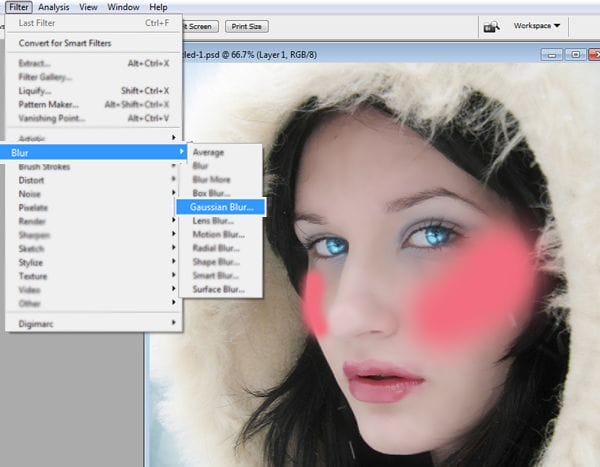
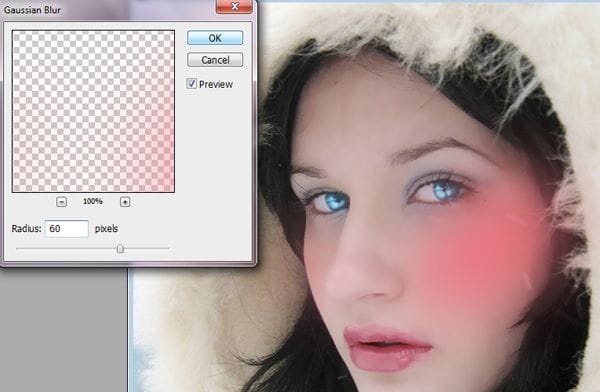
Apply Gaussian blur filter at 60% to make the blush look more natural.
Step 15
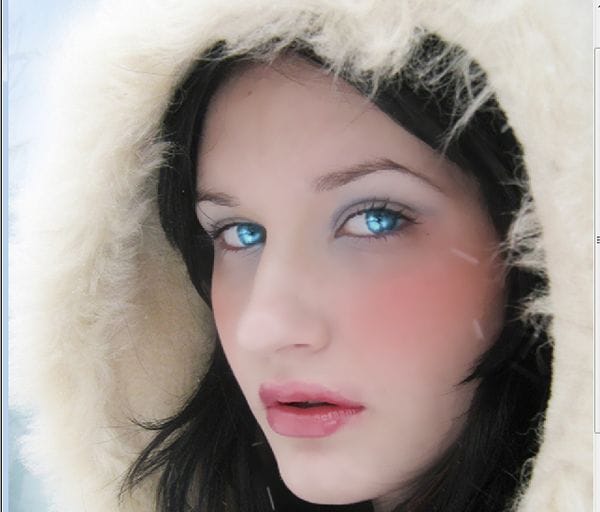
Put the layer in multiply with 50% of opacity and 80% of fill.
Step 16
To make the model’s makeup I apply blue eye shadows. So to make this create a new layer, press shift+crtl+N. then choose a dark blue-violet in the palette, and paint the model’s eye with a soft brush.
21 responses to “Turn a Regular Headshot Into a Cold Winter Portrait”
-

great step by step tutorial ..
-
decent tutorial……… needs more directions
-
I like the idea of this tutorial, it’s very creative and the result looks great.
-
Great :) The result is very beautiful !!
-
you like you like…………
-
I find a lot of your tutorials very very good. This one could have been good but it’s lazy. You have left out very important parts if the tutorial is to followed closely..And I do not understand why you would do this??
-
I only see steps 1-17…where is the rest??
-
try the next page button
-
-
merci pour ce tutoriel
-
You did a wonderful job with this tutorial. It turned out fantastic. I know what I am talking about. Thank you for taking the time and put up tutorials that are so easy to follow.
Thank you -
thank yo for the tut it was realy helping one this is my work but a little bit diffrent
-
this was a wonderful tutorial! I just started using PS, and this tutorial was very simple to follow. I changed a few things up, and mined turned out as a Lady Loki :) I’ve attached it if you’d like to see…
-
lovely tutorial, I attempted making a winter portrait myself following your instructions – turned out just great :)
-
great andrea
-
I’m glad you like it and find it useful :)
-
yeah
-
-
.


Is there a video that I can see on this particular item?
I do better with your videos… my bad! LOL
[email protected]

where did her pupils go?? lol Is she married to the abominable snowman…or bigfoot? Maybe they like blue eyeshadow..
she looks freaky to me…like an alien or something
I would rather forget anything about winter, LOL. Brrrrrrrr!
Leave a Reply